
Add custom banners and messages to your properties.
Create default banners and messages that apply to all account listings, or your own listings, or create a unique custom banner and message for each property
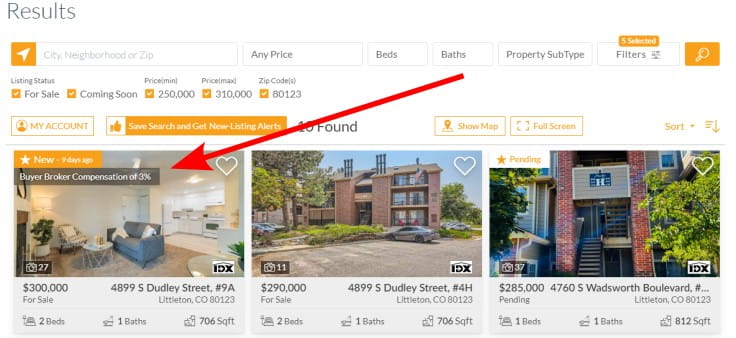
Banner Display
- All summary views such as the grid layouts and search results
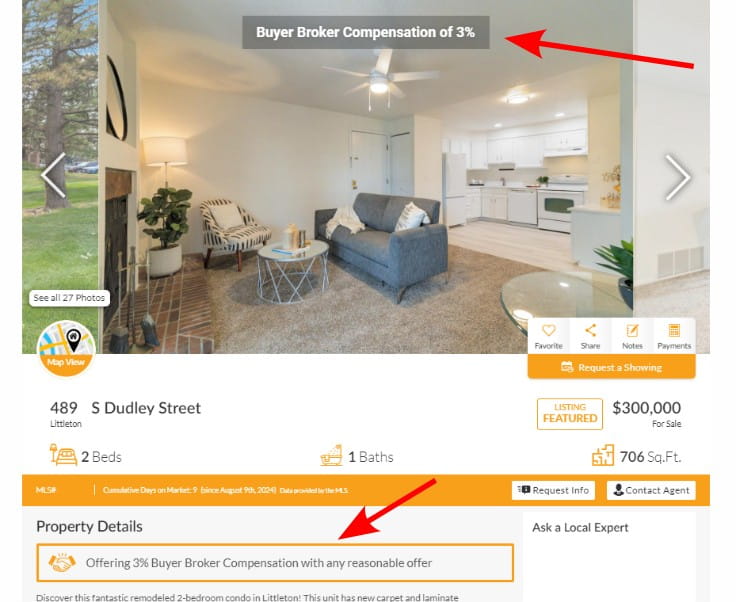
- Property details view (see example below)
Additional Message Display
The Additional Message is displayed on the Property Details below the Property Details heading view.
Banner Message Defaults
Banner Messages can be created to apply to all your account listings, or all your own listings, or just a single listing.
To create a default Banner Messages go to
, and click the Custom Banner Messages link on the right side.
The Custom Banner Messages panel displays the options for setting defaults.
You can now set the default messages for your own listings in the panel "My Own Listings".
If you are an Account Admin in a multi-user account, you can also set the account default messages in the "All Account Listings"
Priority Of Messages
Banner Messages will be applied in the following priority:
- A listing must have the Display Custom Banner option set to YES
- If an individual listing has a Banner Headline or Additional Details, then this will be displayed.
- Otherwise, if the User has set a default Banner Headline or Additional Details, then this will be displayed.
- Otherwise, if the Account has set a default Banner Headline or Additional Details, then this will be displayed.