
Community Pages automatically turn your MLS listings into professional neighborhood marketing pages with AI-generated content. Create pages in seconds, let AI write the marketing copy, and watch as your pages stay fresh with current listings.
What Are Community Pages?
Community Pages are marketing pages that automatically display MLS properties for specific neighborhoods or areas. Each page shows current listings, market statistics, and professionally-written content about the community - all generated and updated automatically.
Create a page for "Coral Gables Condos" and it instantly displays every matching condo in that area. As listings come and go in the MLS, your page updates automatically. Meanwhile, AI generates professional marketing content about the neighborhood in the background.
Why Use Community Pages?
- 15-Second Setup: Enter a community name and area - your page goes live immediately with current listings
- AI Does the Writing: Professional marketing content, neighborhood descriptions, and market insights generated automatically
- Always Current: As listings enter and leave MLS, your pages update automatically - no manual work required
- Create Unlimited Pages: Build as many community-specific pages as you need
- Establish Local Expertise: Show buyers you know every neighborhood with dedicated, professionally-written pages
What Your Community Pages Include
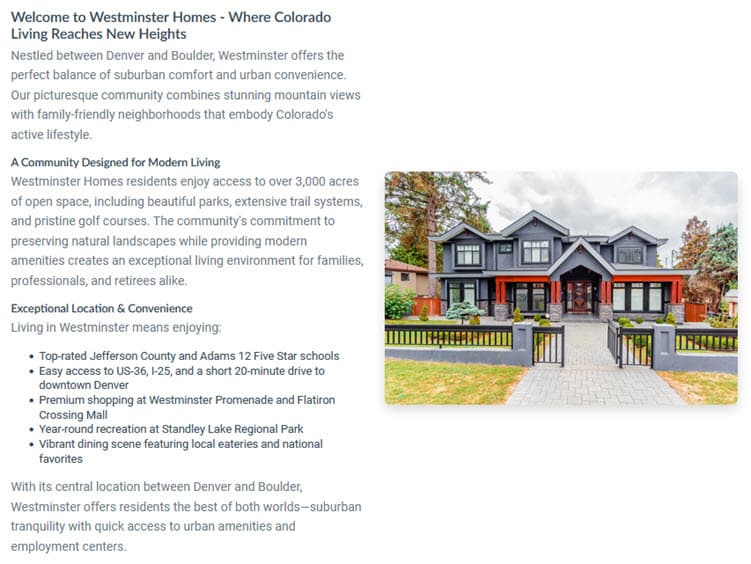
AI-Generated Overview Section
- Professional headline and neighborhood description
- Optional main image and YouTube video
- Key community highlights and appeal points
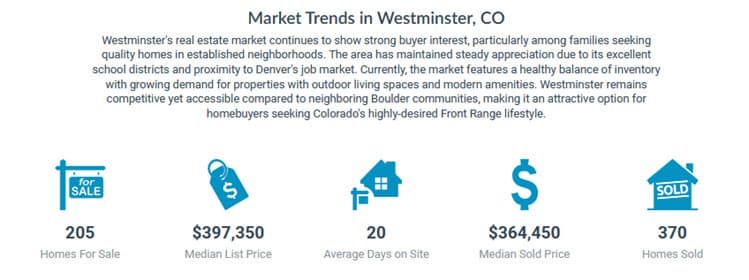
Market Trends and Statistics
- AI-generated market insights and pricing trends
- Buyer demographic information
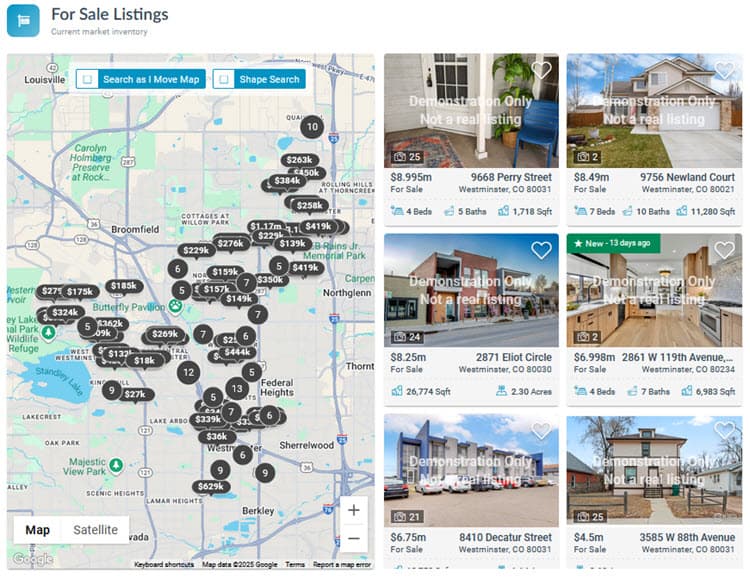
Current Listings
- Live MLS properties matching your page criteria
- Automatically updates as inventory changes
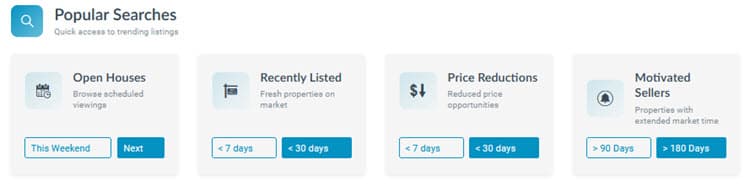
Popular Searches
- Pre-built quick search links for open houses, new listings, price reductions, and distressed properties
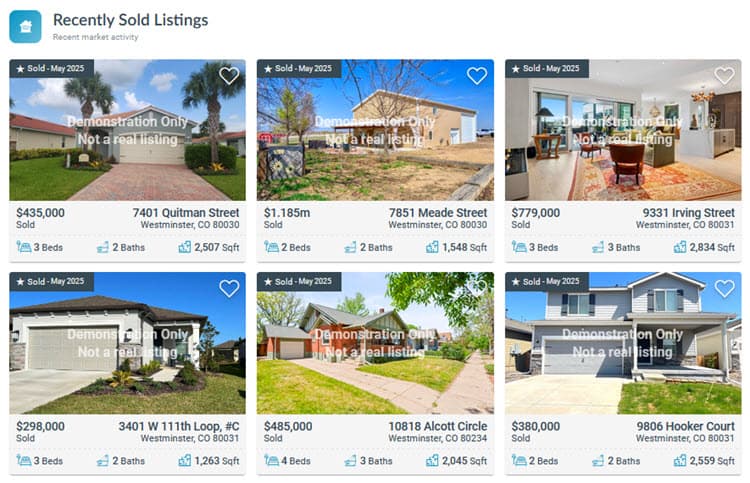
Recently Sold Properties
- Displays when sold listings match your criteria
Call-to-Action Buttons
- Customizable Buttons: Up to 3 personalized buttons to add more tailored local links

How to Get Started
Getting started takes two simple steps: set up your Community Hub page once, then start creating community pages.
Step 1: Set Up Your Community Hub Foundation Page (One-Time Setup)
The Community Hub page acts as the index page for all your community pages (including Group pages). You only need to do this once.
- In your Buying Buddy dashboard:
- Go to
- Scroll down to the Community Hub section to view the setup instructions
- Now go to your website:
- Create a new communities hub page on your website
e.g. mysite.com/communities-hub - Add an H1 heading to the page (like
<h1>Communities</h1>). This serves as a placeholder and is updated when any page is viewed. - Copy the Community Hub widget code from the setup instructions and add it to your page
- Create a new communities hub page on your website
Widget Shortcodes:
[mbb_widget data-type="Communities"]
<bb-widget data-type="Communities"></bb-widget>
Note: URLs for all your community pages are created automatically. You don't need to create individual pages on your website - the single Community Hub page powers everything.
Step 2: Create Your First Community Page
Once your Community Hub Page is set up, creating community pages takes about 15 seconds each.
- Go to
- Click "+ Add Community Page"
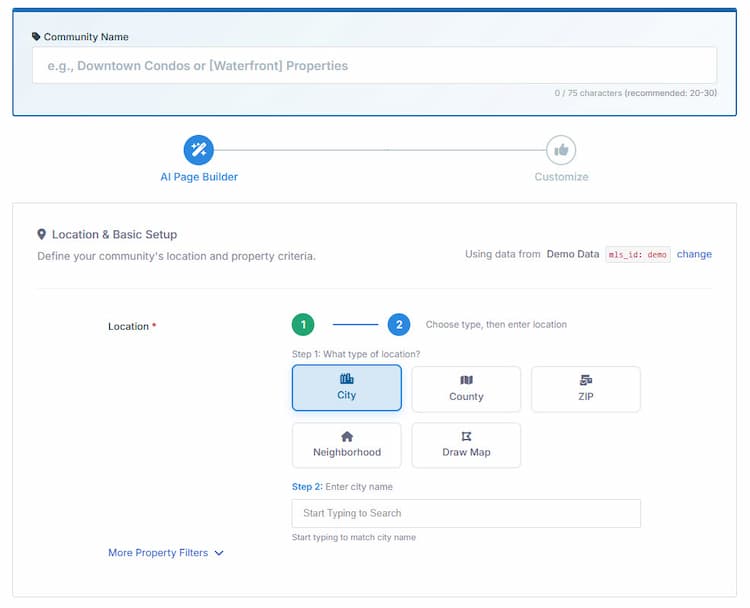
- Enter a Community Name (e.g., "Coral Gables" or "Downtown Condos")
- Select the Location from the dropdown or use the map to define the area
- Choose a Group (your first page will create a default group automatically)
- Click "Create Page"
Your page is now live! MLS listings display immediately. AI will generate professional marketing content in the background - you can continue creating more pages while this happens. Note: AI only creates content when you create a new page.
TIP: When you start creating community pages, add all pages to the "default group" that was created (it will be called "Featured Areas").
Editing Your Community Pages
AI generates professional content automatically when each page is first created, but you can customize everything:
- Edit AI Content: Refine headlines, descriptions, and neighborhood details to add your local expertise
- Add Image: Upload custom photos to represent each community
- Add YouTube Video: Include a YouTube video showcasing the neighborhood
- Adjust Criteria: Change location boundaries, price ranges, or property types
Click the Edit button on any Community Page in the builder to access these options.
Understanding the Community Page Builder
The Community Page Builder shows all your pages organized by groups.
Click each group heading row to expand or collapse, and view the pages inside.
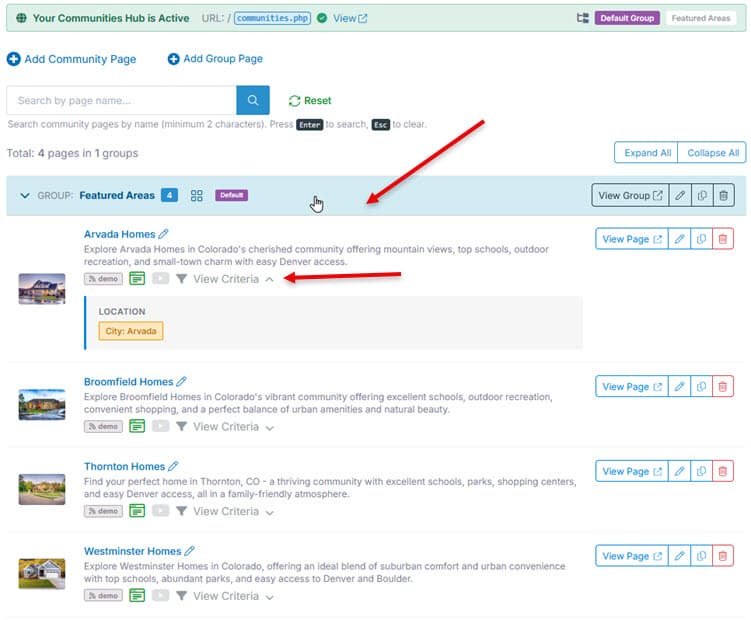
Group heading row:
- How many Community Pages are in the group
- Right side options:
- Button to view live Group Page (opens in new tab)
- Edit Group page settings
- Copy the Group page URL to clipboard
Community Page row:
- View the live page
- See current AI and other content status
- View criteria
- Right side options:
- Button to view live Page (opens in new tab)
- Edit page
- Copy the page URL to clipboard
How to Access and Share Your Community Pages
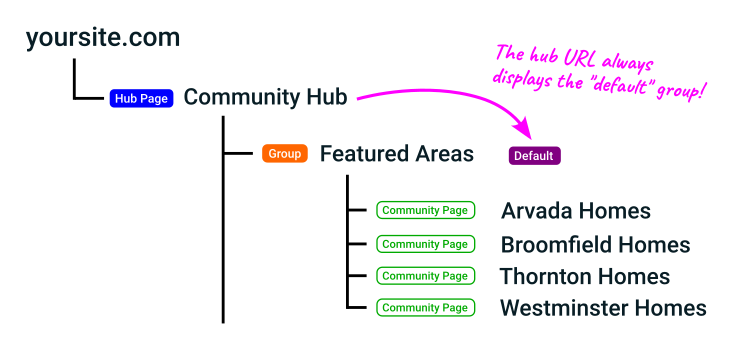
Once your Community Hub is set up, it creates an organized structure where Groups contain your Community-Pages. The exact URLs depend on your website platform, but the structure stays the same - Community Hub, then Group, then Community Page.
When you add a Community Page to a group, it will then be included in the index displayed on the Group Page. Group Pages provides a great way for you to create specialized indexes of common communities, e.g. Luxury Communities, Condo Communities, or any market segment you serve.
Each group gets its own group page with its own URL, letting you create targeted marketing for specific buyer segments. This allows you to add Group Pages to your navigation menu.
You can also feature a group's community index directly on another page - such as a "Communities I Serve" section on your home page - by embedding the Communities widget with a group filter. See Communities Widget for details.
The default group is always shown on the Community Hub foundation page.
Learn more in Organizing Communities with Groups.
Each Community Page also has its own unique URL that you can use in:
- Email signatures
- Newsletters and email campaigns
- Social media posts
- Additional menu items
- Marketing materials
Once created, all page slugs remain the same. They can be changed if needed (see Advanced tab). but this will mean you need to update any links or menus that link to the page.
To copy a Community Page URL: In the Community Page Builder, expand the group to see all the pages. Then click the link icon shown on the right for the page. This copies the direct URL to your clipboard for easy sharing.
What's Next?
Once you've created your first few Community Pages, you can organize them into multiple groups to target different markets and buyer types.
Learn more in our guide: Organizing Communities with Groups.
Most agents find success by creating 15-25 community pages for their farm areas. The process is fast:
- List your top neighborhoods
- Create pages one after another (15 seconds each)
- AI generates content for all pages in the background
- Review and customize when content is ready
You can create multiple pages back-to-back without waiting for AI content generation - the system processes everything automatically while you continue working.