
The Buying Buddy Developer Portal provides our developer partners with powerful tools to manage client accounts, research MLS compatibility, and streamline the implementation process. This centralized dashboard makes it easy to create, monitor, and upgrade client accounts throughout their lifecycle.
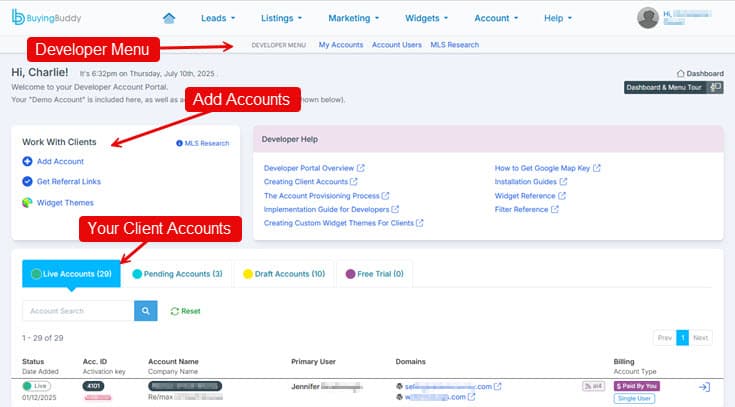
Adding New Clients: To set up new client accounts, use the Add Account option in your portal, then follow the platform-specific installation steps. See Adding Client Accounts - The Provisioning Lifecycle for complete instructions.
Key Features
The Developer Portal includes several essential tools to support your client projects:
Account Management Dashboard
Monitor all client accounts from a single interface with status-based organization:
- Live Accounts: Fully approved accounts with active MLS data feeds
- Pending Accounts: Accounts awaiting IDX license approval
- Draft Accounts: Development environments using demonstration data
- Free Trial Accounts: Temporary accounts for client evaluation (created through Referral Links)
Account Creation Options
Choose the approach that best fits your workflow:
- Add Account: Create draft accounts for development without client involvement. This is the recommended approach for most implementations.
- Referral Links: Generate custom links for clients to sign up directly. When clients use your referral link, their account automatically appears in your dashboard, and you receive appropriate referral credit. Clients can choose free trial or paid options through referral links.
For complete setup instructions, see Adding Client Accounts - The Provisioning Lifecycle.
MLS Research
Before starting client projects, use the MLS Research panel to confirm compatibility and requirements for your client's MLS.
Using MLS Research
- Navigate to your Developer Portal dashboard
- Click the MLS Research link in the main navigation
- Search for or select the specific MLS
- Review the complete information
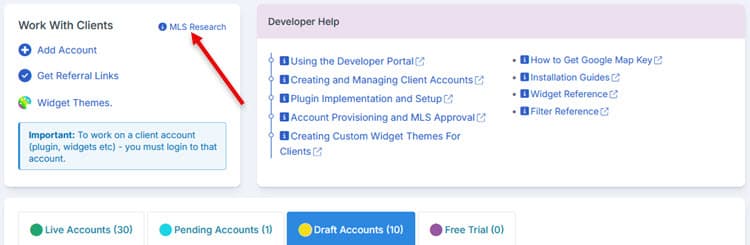
Information Available
MLS Research provides the following details for each MLS:
- IDX Data Feed Status: Verify if Buying Buddy connects to the MLS data feed
- IDX Approval Process: Access licensing instructions and required steps
- MLS Passthrough Fees: Review any additional fees that may apply
- Expected Timelines: Understand typical approval durations
- Special Requirements: Identify any MLS-specific considerations
Quick Access for Existing Accounts
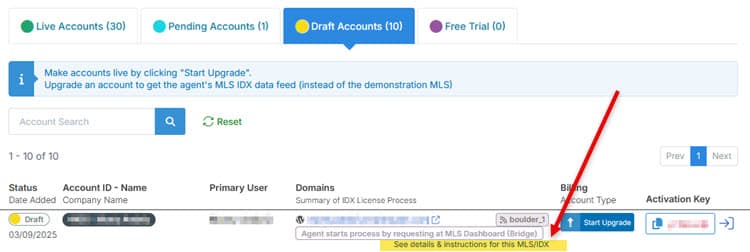
For Draft and Pending accounts, you can also access MLS instructions directly from the account summary by clicking the Instructions for this MLS link.
Accessing Client Accounts
Managing Accounts
The Developer Portal provides a streamlined way to access and manage all your client accounts:
- When you log in, your first view will be "Live Accounts"
- Access any client account by clicking the login icon on the right side of the account row
- This same login method applies to all Users within an account
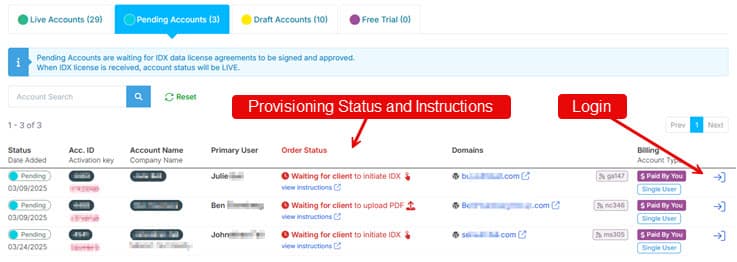
Once logged in to a client account, you have full access to handle customizations, setup, and support tasks.
Note: Your browser can only maintain one active account session at a time. Always access client accounts through your Developer Portal rather than setting yourself up as a Webmaster user within client accounts.
Returning to Your Main Account
When finished working in a client account, you have two options:
- Log off completely: This ends the session and requires you to log in again to your main account
- Switch back to your account: Click "Switch Back To Myself" in the top menu to return directly to your main account without logging out

Demo Websites for Inspiration
These demo websites showcase the various Buying Buddy widget components that are embedded in pages. At the bottom of each page there is a section in yellow that shows the short code used in each case.
- charliesmithrealty.com is a WordPress site built using DIVI and uses the Buying Buddy WordPress plugin.
- charliesmithrealty.net is an HTML website and is using the Buying Buddy JavaScript plugin.
Your Personal Demo Environment
Your Developer Portal includes a complete Buying Buddy demo account that you can use to create your own demonstration website, showcase features to potential clients, test new integrations, practice configurations, and train your team. This demo environment uses the Demo MLS data and includes all features available in production accounts.
Support and Help Resources
Creating Support Tickets
The Developer Portal provides multiple ways to request assistance:
- From your main account: Use this for general help with your own account
- From your account, referencing a client: When you need assistance with a client account but don't want the client involved
- From within a client account: Log in as the client to submit tickets that appear to come directly from them. You can add your email as CC to receive all communications.
To create a ticket from any account, click "Help & Support" in the menu, select "New Help Ticket", and complete the form with relevant details. When a ticket is submitted, our support team can immediately see the account, websites, and leads associated with the request.
Canceling Accounts
To cancel a client account on their behalf:
- Navigate to your Developer Portal dashboard
- Find the account in your account list
- Click the cog icon on the right side of the account row
- Select the cancellation option from the menu