
The Map Display widget displays properties on an interactive map. A Search Filter can be applied to specify the properties to be shown.
If the Search Filter includes a polygon area, then an outline of the Polygon will be shown on the map. (If you use a shape in a filter then be aware that a large number of vertices will slow down the query). The initial view of the map will automatically zoom / pan to an appropriate presentation that shows all properties being returned.
NOTE: If you wish to provide a map to users for searching, then use the Results widget.
You must still maintain a Results Foundation page, but the Results widget can be displayed like any other general widget on other pages too.
The Map Widget is Interactive which means that users can adjust search parameters to dynamically change the map results.
- If a polygon outline is shown, the vertices may be adjusted
- Full screen mode is available too
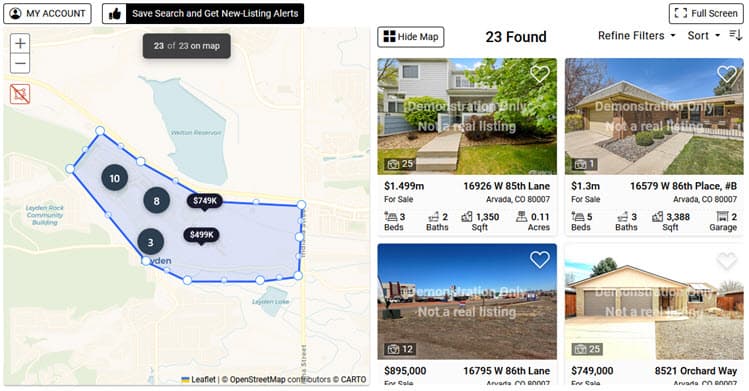
Layout and Responsive Design
Tip: If you place this widget inside your own container or section, don't set that container to overflow: hidden (or overflow: auto / overflow: scroll). That turns it into a scroll area and stops parts of the widget layout being pinned as the page scrolls. If you need to clip the container - for rounded corners or a card edge - use overflow: clip instead.
Container Responsive Design:
- This widget is mobile responsive and will expand to fill any container / space made available in your website page design. Uses container queries for dynamic adaptation to any placement context
- Optimized for mobile display with support for containers as narrow as 280px
- Typical layout breakpoint occurs at 768px
- Ensures consistent user experience across all digital environments
Presentation Modes:
- Split Screen: Shows the map and properties side by side (initial default view on desktop)
- Map Only: Full map view with property markers (initial default view on mobile)
- Grid Layout: Properties displayed in a grid layout when map is hidden
Colors and Theming
- Widget Themes can be used to apply predefined or custom color schemes
- Background: Uses 'Widget Background' color from the applied widget theme
Basic Implementation
Grab and Go Widgets: For quick implementation, visit Widget > Grab-and-Go Widgets in your dashboard to find a large collection of ready-to-use widgets already configured for your account.
<bb-widget data-type="InteractiveMap"></bb-widget>
[mbb_widget data-type="InteractiveMap"]
Parameters and Filters
Required Parameters
data-type="InteractiveMap"
This defines the widget to be a Map Display widget
Widget-Specific Filters
Using a Filter with the widget is optional, but allows you to completely specify the types of properties you want to display using any available MLS criteria. (e.g. foreclosures in Arvada, listings between 300,000 to 400,000 in Denver, etc.) As with all searches (not just the map) a map area / shape can be included as part of the filter parameters. If this is applied to a map widget, then the map will show the shape outline.
Important: For comprehensive information about general filter parameters and MLS criteria, see the Filter Parameters Reference.
data-filter Options
Use the Wizard to discover and set these options as the data-filter option as part of the widget short code.
- shapesearch:{lat+lon}
Use the Widget Wizards to generate the latitude and longitude for your shape. - mapzoom:{level}
Choose the zoom level you want for the initial map view. Use the LAC Wizard to create these filter values. Use the "Display Properties With Widgets" wizard. The option to set the mapzoom: and mappos: parameters is on step-3 of the wizard, under the map on the left side. Remember the view of the map does not affect the result, just the view. - mappos:{lat+lon}
Choose the center point you want for the initial map view. Use the Wizard to create these filter values. The option to set the mapzoom: and mappos: parameters can be found on the MLS Criteria selection page in the Map Area tab of the search form. Remember the view of the map does not affect the result, just the view. - tab:gallery
Show the Grid layout initially when the widget loads instead of the map. - header-menu:false
This will hide the 'menu' icon and the 'save-search' button in the header. - login-panel:false
This will hide the entire header above the display. - limit:xx
This sets the pagination of properties shown in the grid to the right of the map.
TIP: If the map is embedded as a component on page with lots of other content, then use this option (e.g. limit:10) to ensure that users don't get stuck on the map too long before continuing to scroll down a page.
Map Position and Zoom Filters
Set the initial map view center point and zoom level. This filter requires latitude and longitude values, so use the LAC Wizard to create these filter values. Remember the view of the map does not affect the result, just the view.
Custom Height
Important: Setting a height will remove sticky map positioning.
If a height is set using the mapheight filter option, the widget will no longer use sticky positioning. The widget will instead be constrained to the specified height with internal scrolling.
When the map loads, the widget height will be adjusted to fit inside the browser. The height can be manually set by using the mapheight filter option as part of the widget code. Setting the height will apply to the widget only when showing the map.
<bb-widget data-type="InteractiveMap" data-filter="mapheight:500px"></bb-widget>
[mbb_widget data-type="InteractiveMap" data-filter="mapheight:500px"]
Page Header Offset
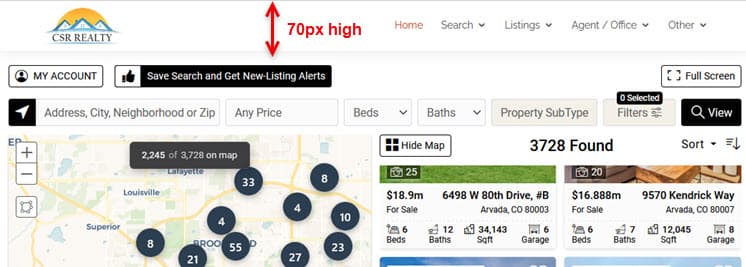
When the Results widget is displayed in sticky/split-screen mode, the map and property list panels stick to the very top of the browser as you scroll. If your website has a fixed or sticky header (such as a navigation bar), the widget needs to know the height of that header so it can position itself correctly beneath it.
In the example shown below, the header is 70px high. Without any adjustments, the top of the widget will be covered by the website header when scrolling.
Set "header offset" in Dashboard Settings (Recommended)
The recommended approach is to configure the widget header offset in your Buying Buddy dashboard. This allows you to set different values for each screen size to match your website's responsive header behavior.
To configure:
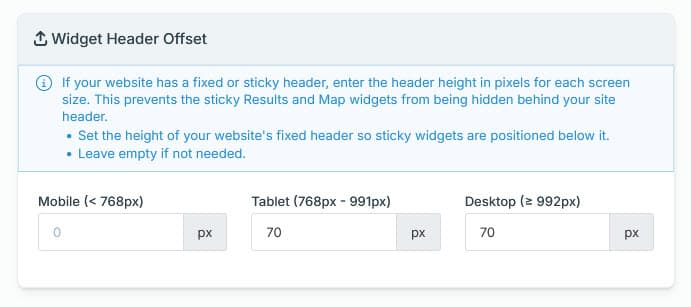
You can specify the height (in pixels) of your website's header for each screen size:
- Mobile (below 768px): Header height for phones and small screens. Note that sticky mode is not active on mobile, but this value is stored for future use.
- Tablet (768px – 991px): Header height for tablet-sized screens. If a Desktop value is not set, this value will also be used for desktop screens.
- Desktop (992px and above): Header height for desktop screens. If not set, the Tablet value is used.
IMPORTANT: Make sure you clear your caches (website cache, server cache, browser cache etc) in order to see the new setting take effect.
Tip: You only need to set the values that apply. For example, if your website header is 80px on all screen sizes above mobile, you can set just the Tablet value to 70 and leave Desktop blank — the Tablet value will automatically apply to Desktop as well.
Header Offset Filter Parameter
Alternatively, a single offset value can be set using the topOffset filter parameter directly in the widget code. This applies the same value to both Tablet and Desktop screen sizes.
<bb-widget data-type="InteractiveMap" data-filter="topOffset:70"></bb-widget>
[mbb_widget data-type="InteractiveMap" data-filter="topOffset:70"]
Note: If any value is configured in the dashboard Page Header Offset settings, the topOffset filter parameter will be ignored entirely. The dashboard settings always take priority. Use one method or the other, not both.
Hide the Grid Sidebar
The Map Display widget layout always includes the sidebar that shows properties. If you wish to hide this for your display, then the current approach will be use this custom CSS with your Widget Theme to hide this element.
.bfg-map-list-container { display: none; }
See Search Filters and How to Use Search Filters for more help on these parameters.
Limitations
- The Map Widget cannot be combined on a page with the Results widget
- The maximum number of property results that can be displayed on the map is 2500. If you use a shape in a filter then be aware that a large number of vertices will slow down the query.
- Only one polygon can be shown on the map.