
If the App doesn't work as expected after your installation, check the following to help with troubleshooting.
NOTE: Do not create another account.
Lost Connection
Most problems occur because your Buying Buddy account loses connection with your Wix App / website.
When you add the Buying Buddy App, the App in your Wix site gets connected to your Buying Buddy account with a special Wix ID.
Sometimes, certain events will change or update the Wix ID.
If the Wix ID stored in your Buying Buddy account doesn't match the Wix ID on your site, then the App cannot be authorized.
Wix ID Problems can be seen in your Buying Buddy Account
- Log in to your Buying Buddy dashboard and go to Widgets > Authorized Domains.
- Click the row for your Wix website to expand the details
- Problems will be indicated with a message as shown below.

The following steps will reconnect your App / Website to your Account and resolve the issue:
The Fix: Reconnect The App To Your Buying Buddy Account
1. Delete The App
- Delete the App from your Wix Editor by going to:
Add Apps > Manage Apps (at the bottom)
Then delete the Buying Buddy App. - Make sure it really does get deleted!
Exit the editor and refresh if you are having problems.
2. Get Your Buying Buddy Account Activation Key
Log in to your Buying Buddy account.
Go to
Your activation key is the first thing shown on this page. Click the blue copy button to copy this to your clipboard.

3. Add App and Activate with Account Activation Key
Important: Sites must be published for the Buying Buddy widgets to work.
The published domain name of your website must match the domain name shown in your Buying Buddy account. If you need to change the domain name now or in the future - just submit a Help Ticket in your Buying Buddy account to request the change.
- In the Wix Editor, open the App Market - find Buying Buddy and add the App again.
- On the Activation page paste in your Account Activation Key - then click "Activate".
DO NOT create a new account. - Allow the App to install again.
At the end of this process publish again to see pages and widgets on your published site.
Still Seeing Issues?
- Please submit a Help Ticket explaining the situation so we can correct your account settings.
Remove Site Password Protection
Buying Buddy widgets and components need to communicate with our servers.
Having password protection on the site will prevent these communications and widgets will not be displayed correctly.
To turn off this feature:
- Go to the Editor
- Find and click Settings in the top menu
- Click the option for "Site Password"
- Select "Everyone" can view the site - and save.
Widget Layouts Broken: Small Text, No Colors, No Images
The App has lost the connection with the CSS definitions that control styling.
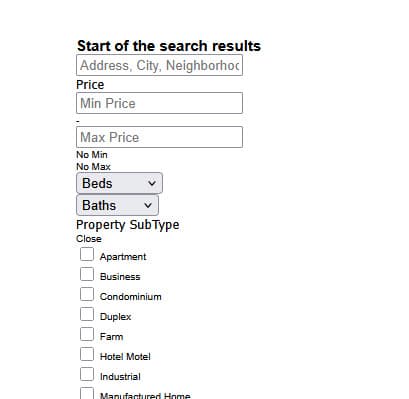
To resolve this issue:
- Go to the Buying Buddy Wix Dashboard and scroll down to the "Style Widgets" section.
- Click the "Apply Theme" button. This should reconnect the App with the theme definitions and restore normal appearance
Incomplete Setup
If you see the following, then the Buying Buddy App has not completed the process of adding the App.
- When you completed the order form and clicked to "Return to Wix", you were left on a white page.
- On the Wix Editor, the "4-squares" icon to Add Apps on the left is red with a warning indicator
In these cases, follow these steps to complete setup.
- Click the "4-squares" icon to Add Apps on the left - this shows the App Market.
- At the bottom - click the link that says "Manage Apps" that has the Red warning message indicator next to it, as shown in this image:

- On the "Manage Apps" panel, click the blue button to "Complete Setup" for the Buying Buddy App

- The Buying Buddy App will then complete setup and add all the pages.
App Activation
Re-adding the App
In most cases when the App is deleted then re-added, the domain is immediately recognized by the Buying Buddy system. The App will be automatically activated and installed.
However, if the Wix ID has changed, this connection cannot occur, and you will see the Activation panel.
Activating with your Account Activation Key
Don't create a new account - simply paste in your Buying Buddy Account Activation Key to activate and reconnect the App to your account.
Finding your Account Activation Key
The key was included in the the Welcome email we sent you when you first created your account.
Or, you can login to your Buying Buddy account to find this:
- Log in to your Buying Buddy account.
- Go to
- Your activation key is the first thing shown on this page. Click the blue copy button to copy this to your clipboard.
Still Seeing Issues?
- Please submit a Help Ticket explaining the situation so we can correct your account settings.