
Invite Buying Buddy to be a member on your Cloudflare account.
Choose your method below
Assistance With A Single Domain
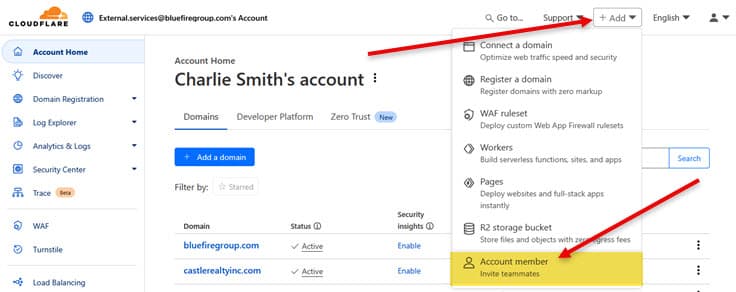
- Log in to your Cloudflare account
- In the top menu click "+Add", then select "Account member"
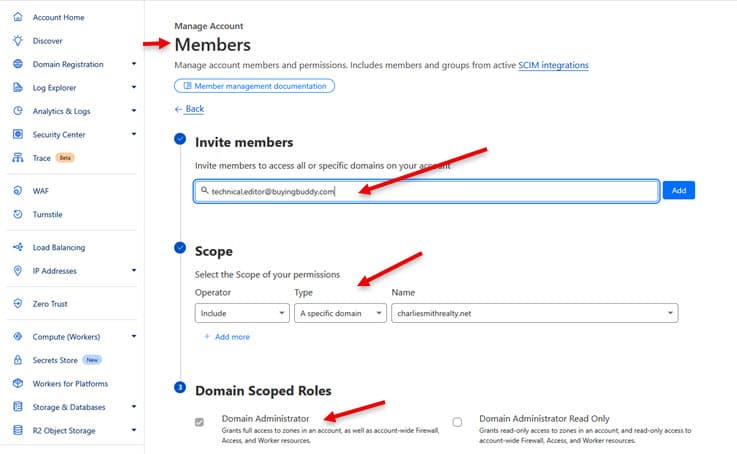
- On the Members page,
- Invite Members
- Add our email: technical.editor@buyingbuddy.com
- Scope
- Operator: "Include"
- Type: "A specific domain"
- Name: Select the domain
- Domain Scoped Roles
- Select "Domain Administrator"
- Invite Members
- At the bottom of the page, click the blue button "Continue to Summary"
- On the next page, click "Invite"
- Please tell us that you have sent the invite
Assistance With Multiple Domains
- Log in to your Cloudflare account
- In the top menu click "+Add", then select "Account member"
- In the Members page,
- Invite Members
- Add our email: technical.editor@buyingbuddy.com
- Scope
- Operator: "Include"
- Type: "Domain Group".
- You will see a new button displayed on the right "+ Create a Domain Group"
- Click this button
- Select the domains
- Give your group a Name on the right
- Click "Back to Invite"
- Domain Scoped Roles
- Select "Domain Administrator"
- Invite Members
- Click the blue button "Continue to Summary"
- On the next page, click "Invite"
- Please tell us that you have sent the invite