
Enable visitors to share properties on social media with correct listing photos and details by setting up a "bb" subdomain for your domain. This creates dedicated URLs that display properly when shared on Facebook, Twitter, and other social platforms.
WordPress and SDK for PHP Users: This setup is not required for WordPress installations or sites using the Buying Buddy SDK for PHP, which use different methods for social media sharing.
Important: Without this configuration, shared property links will show generic website information instead of specific property details and photos.
How It Works
When someone shares a property link on social media, the platform looks for specific meta tags to display the property photo, price, and description. The "bb" subdomain serves these optimized pages that contain the correct social media tags for each listing.
Choose Your Setup Method
We strongly recommend using Cloudflare for the easiest setup with automatic SSL certificates and better performance. If you prefer to use your current domain registrar, see the alternative instructions at the bottom of this article.
Recommended: Cloudflare provides simpler DNS management, faster DNS propagation, and enhanced security features at no cost.
Setup with Cloudflare (Recommended)
1
Create Cloudflare Account
Set up your free Cloudflare account and add your domain
Cloudflare is a free service that manages your domain's DNS settings and all subdomains. Think of it as a phone book that tells the internet where to find your website and email.
Important: Choose the FREE plan - do not select any paid options during setup.
Steps:
- Visit https://dash.cloudflare.com/sign-up
- Create a free account
- Enter your website's domain name and select the FREE Cloudflare plan
- Cloudflare will automatically import your current DNS settings

- Note the two nameserver addresses provided - you'll need these in the next step.
For example: demi.ns.cloudflare.com - and - alan.ns.cloudflare.com
Wix - Additional Instructions
Setup your free Cloudflare account as described above.
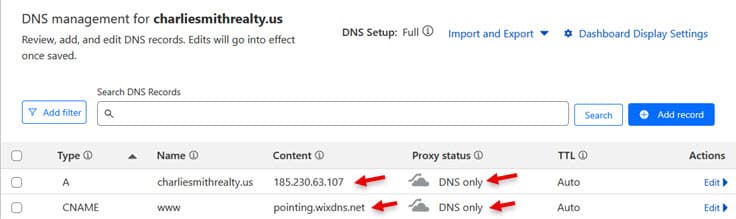
After Step-5, you must review and update your DNS records in Cloudflare for proper Wix functionality. The A record and CNAME record for your domain should be set to DNS Only:
- Go to your Cloudflare dashboard and select your domain
- Click "DNS" in the left menu
- In the "DNS Management" table, verify these settings:
| Record Type | Name | Content/Target | Proxy Status |
|---|---|---|---|
| A Record | your-domain-name | 185.230.63.107 | DNS Only (gray cloud) |
| CNAME | www | pointing.wixdns.net | DNS Only (gray cloud) |
- Edit any existing records that don't match the table above
- Your DNS records should look similar to this:
Progress Check: ✅ Cloudflare account created and domain added
2
Update Nameservers
Point your domain to Cloudflare's nameservers
Change your domain's nameservers to point to Cloudflare. This tells the internet to use Cloudflare's DNS settings for your domain.
Note: Your website will continue functioning normally during this process.
General Instructions
General Steps:
- Log into your domain registrar account (where you purchased your domain)
- Find "DNS Management," "Nameservers," or "Domain Management"
- Replace existing nameservers with Cloudflare's two nameservers
- Save changes
Domain Registered at Squarespace Instructions
If your domain is registered at Squarespace:
- In your Squarespace account, go to Settings → Domains
- Click on your domain name
- Click "Use Custom Name Servers"
- Enter the two Cloudflare nameservers provided in your Cloudflare account
- Save changes
See this Squarespace support article: Making changes to nameservers
Progress Check: ⏳ Nameservers updated (waiting for Cloudflare confirmation that your domain is active (usually 5 minutes to 24 hours).
Check DNS propagation using https://www.whatsmydns.net
3
Add Social Share Subdomain
Create the "bb" subdomain in Cloudflare
Add a new CNAME record in Cloudflare to create the bb subdomain for social sharing.
Steps:
- Go to your Cloudflare dashboard and select your domain
- Click "DNS" in the left menu
- Click "Add Record"
- Enter the following settings:
| Type | CNAME |
| Name | bb |
| Target | bfg-buying-buddy-1460575897.us-east-1.elb.amazonaws.com |
| Proxy Status | ON (orange cloud) / Proxied |
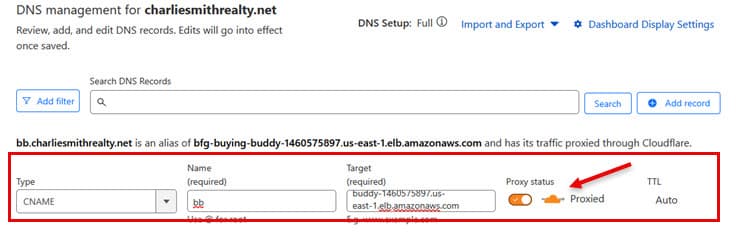
- Save the record
Progress Check: ✅ "bb" subdomain DNS record created
4
Test and Confirm
Verify setup and update Buying Buddy settings
DNS changes can take up to 24-48 hours to propagate, though Cloudflare often works within minutes.
Testing:
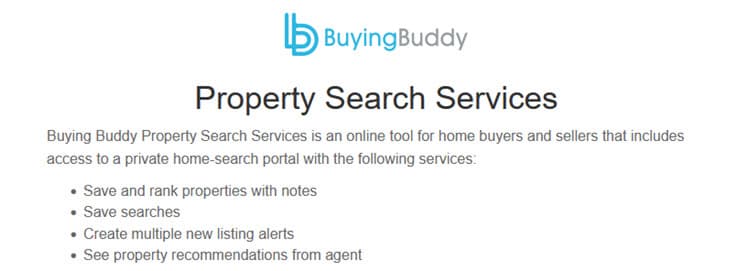
- Visit http://bb.yourdomain.com (replace with your actual domain)
Get specific testing instructions for your domain from your Buying Buddy dashboard go to Installation and Setup : Social Share tab - You should see a page with the Buying Buddy logo and "Property Search Services" title
Update Buying Buddy Settings:
- In your Buying Buddy dashboard go to Installation and Setup : Social Share tab
- Change the setting to "YES, DNS A-Record has been added and tested!"
- Save the changes
Progress Check: ✅ Social sharing tested and working
How Social Sharing Works After Setup
Once configured, property share links will:
- Display the correct property photo as the featured image
- Show property price, beds, baths, and square footage
- Include property description or marketing remarks
- Redirect visitors to the full property details on your website
This creates a professional appearance when properties are shared on Facebook, Twitter, LinkedIn, and other social platforms, driving more qualified traffic to your listings.
Alternative Setup (Without Cloudflare)
If you prefer to use your current domain registrar instead of Cloudflare, follow these steps.
Steps:
- Get specific instructions for your domain from your Buying Buddy account:
- Log into your domain registrar and find "DNS Management" or "DNS Records"
- Add a CNAME record with these settings:
| Type | CNAME |
| Name/Host | bb |
| Target | bfg-buying-buddy-1460575897.us-east-1.elb.amazonaws.com |
- Save changes and wait 24-48 hours for DNS propagation
- Test your setup by visiting http://bb.yourdomain.com - you should see the Buying Buddy page
- Update your Buying Buddy account Social Share settings to "YES, DNS A-Record has been added and tested!"
Troubleshooting
DNS Not Propagating
If bb.yourdomain.com isn't working after 48 hours:
- Check DNS propagation at https://www.whatsmydns.net
- Verify the CNAME record target exactly matches the provided settings
- Ensure you added "bb" as the record name (not "bb.yourdomain.com")
- Contact your domain registrar if nameserver changes aren't taking effect
SSL Certificate Issues
If https://bb.yourdomain.com shows SSL errors:
- Wait a few hours after setting up Cloudflare for SSL to fully activate
- Check Cloudflare SSL settings: go to SSL/TLS → Overview and ensure it's set to "Full" or "Automatic"
- Clear your browser cache and try from a different device
- For non-Cloudflare setups: submit a help ticket and provide details so we can investigate
Cloudflare SSL Configuration: If using Cloudflare, you can adjust SSL settings:
- Option 1: Select "Automatic SSL/TLS" (recommended)
- Option 2: Use "Custom SSL" set to "Full" (avoid "Flexible" mode)
Wix-Specific Issues
If your Wix website becomes inaccessible after changing nameservers:
- Verify DNS settings in Cloudflare match the Wix requirements: A record pointing to 185.230.63.107 and CNAME www pointing to pointing.wixdns.net
- Ensure both records have "DNS Only" (gray cloud) proxy status
- Wait up to 24 hours for DNS changes to fully propagate
- If domain transfer is taking too long, contact your new registrar's support
Wrong Page Displayed
If bb.yourdomain.com shows your website instead of the Buying Buddy page:
- Verify you created a CNAME record, not an A record
- Check that the target points to the Buying Buddy server address exactly
- For Cloudflare users: Ensure Proxy Status is ON (orange cloud)
- Clear browser cache and test from a different device or network
- Wait longer for DNS propagation - it can take up to 48 hours
Website Becomes Inaccessible
If your main website stops working after nameserver changes:
- Verify nameserver settings are correct in your domain registrar
- Check that all required DNS records were properly imported to Cloudflare
- For Cloudflare users: Export your DNS records as backup before making changes
- Contact your domain registrar's support if nameserver changes aren't saving
Need to find Nameservers in Cloudflare
If you need to find the new nameservers in your Cloudflare account:
- Go to your Cloudflare dashboard
- Select your domain
- Click "DNS" in the left menu
- In the DNS tab, scroll down to the bottom of the page to see the "Cloudflare Nameservers" table.
- Example nameservers: (make sure to use your specific nameservers)
- demi.ns.cloudflare.com
- alan.ns.cloudflare.com
Additional Resources
- Change DNS Nameservers for your Squarespace Registered Domain
- Unlock and Transfer a Domain Name away from Squarespace
- Transferring Your Wix Domain Away from Wix
- Cloudflare Documentation
- Godaddy Domain Transfer Guide
- Contact your domain registrar's support for assistance with nameserver changes
Need Help?
Contact Buying Buddy support through your dashboard if you need assistance with DNS setup or encounter any issues during configuration.