
Tasks are the reminders that keep your follow-up on track: calls to make, appointments to keep and to-dos to finish. Buying Buddy collects them all in one place and shows you what is due, so no lead falls through the cracks.
Why it matters: Most leads need several touches before they are ready to act. A task for every next step means you follow up on time, every time, without having to remember it all yourself.
Where Tasks Come From
- Inquiries from leads: when a lead requests a showing or more information, a task is created so you can respond. See The Activity Tab.
- Drip campaigns: campaigns can include call and to-do steps. Each step becomes a task when it is due, and the next step is scheduled once you complete it. See Create and Edit Drip Campaigns.
- Tasks you add yourself: for a lead, or a personal task that isn't tied to any lead.
Add a Task
For a lead: open the lead's Lead Dashboard and use either the More (⋮) menu next to the quick actions and choose Add Task, or the + on the Follow Up panel in the sidebar. Choose the type of task, when it is due, and add any notes.
A personal task: on the Follow Up Tasks page, click Personal Task.
See What's Due
Your tasks appear in several places:
- Dashboard Home: the Tasks Due Today card shows how many tasks are due today or overdue. Click it to see them. See Your Dashboard Home.
- The Leads menu: under Follow Up & Messages, choose Follow Up Tasks, Due Today, Upcoming Tasks, Calendar, Inquiries from Leads or Completed Tasks.
- Lead Summary: the Calls Due Today and Tasks Overdue Work Lists, and the Follow Up column on every row.
- The Lead Dashboard: the Tasks pill in the status bar shows Tasks Due, Tasks Scheduled or No Tasks. Click it to see that lead's tasks.
The Follow Up Tasks Page
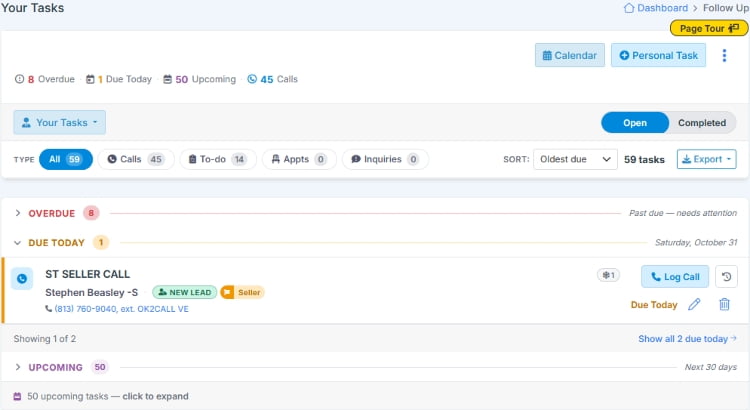
Go to . Counts at the top show what is Overdue, Due Today and Upcoming. Use the controls to narrow the list:
- Your Tasks or All Team Tasks (team leaders and Account Admins).
- Open or Completed tasks.
- Type: All, Calls, To-do, Appts (appointments) or Inquiries.
Each task shows when it is due (for example Due Today or Past Due 3 days) and the lead's name, Contact Type, star rating and Activity Score, so you can decide what to tackle first. Click Calendar to see your tasks by date.
Complete a Task
- Click the task to open it. You see the lead's details, the task details and, for inquiries, everything the lead submitted, including the property they asked about.
- Under Complete as, choose Call, Meeting or Other, and select the outcome, for example Spoke w/lead, Left message, No answer or Met lead. Add notes if you like.
- Choose Done if no follow-up is needed, or Done + Follow-up to schedule the next task straight away.
Completed calls and notes are saved to the lead's Communications tab, and completed inquiries show a Completed badge on the Activity tab.
Tip: Use Done + Follow-up every time you speak to a lead. Ending each conversation with the next step already scheduled is the simplest way to keep every lead moving.