
The More Filters panel on Lead Summary lets you find any group of leads by combining dozens of options: how engaged they are, where they came from, where their deal stands and what kind of homes they look at. This guide explains every field.
Why it matters: The right list makes the right message possible. Filters let you pick out exactly who to call, who to add to a campaign, or who to send a new listing to, and save that list as a Segment so it keeps itself up to date.
Where to Find It
Go to and click More Filters in the filter bar. The panel opens below the bar. Set the fields you want, then click Show leads. Click Reset to clear the panel.
More Filters work together with the main filter bar (Search, Rating, Interest, Contact and Stage) and with any Work List or Segment you have selected. A lead must match every filter you set to appear in the list. For the filter bar, Work Lists and bulk actions, see Lead Summary and Work Lists.
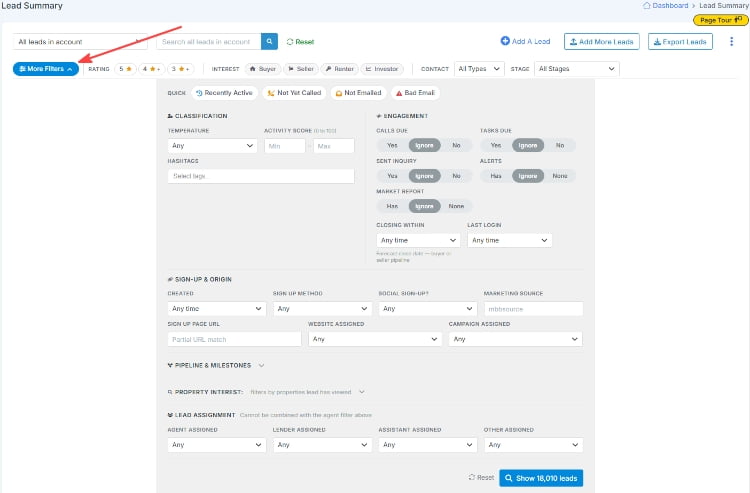
Quick Filters
One-click shortcuts at the top of the panel. You can use one at a time, and click it again to turn it off.
| Quick filter | Shows leads who |
|---|---|
| Recently Active | Signed in to your website in the last 7 days |
| Not Yet Called | Have a phone number but no calls logged |
| Not Emailed | Have never been sent an email |
| Bad Email | Have an invalid email address |
Classification
| Field | How it works |
|---|---|
| Temperature | Hot (Activity Score 70 to 100), Warm (40 to 69), Cold (1 to 39) or Inactive (0) |
| Activity Score | Enter a minimum and/or maximum from 0 to 100 for a more precise range than Temperature |
| Hashtags | Choose one or more of your tags. Leads with any of the selected tags are shown |
Star Rating, Interest and Contact Type are in the main filter bar. To learn how scores and tags work, see How to Categorize Your Leads.
Engagement
| Field | How it works |
|---|---|
| Calls Due | Yes shows leads with a call task due today or overdue |
| Tasks Due | Yes shows leads with any task due today or overdue |
| Sent Inquiry | Yes shows leads who have submitted an inquiry, such as a showing request or question |
| Alerts | Has shows leads with an active listing alert. None shows leads without one |
| Market Report | Has or None for an active market report (shown when market reports are available for your account) |
| Closing Within | Leads whose Buyer or Seller forecast close date falls in the next 30, 60 or 90 days |
| Last Login | Leads who signed in to your website in the last 7, 14, 30, 60 or 90 days |
Leave a switch on Ignore (or Any time) and it has no effect on the list.
Sign-up & Origin
| Field | How it works |
|---|---|
| Created | Leads added in the last 7, 14, 30, 60 or 90 days |
| Sign Up Method | How the lead was added, for example Create Account, Saved Search, Saved Listing, Lead Capture Form, Manual Entry, CSV Import, Zapier Import, or an import from Zillow.com, Realtor.com or Homes.com |
| Social Sign-up? | Leads who registered with Google or Facebook |
| Marketing Source | The marketing source code captured when the lead signed up. Type part of the code to match. See How to Capture Leads from a Marketing Campaign |
| Sign Up Page URL | The web page the lead signed up on. Type part of the address, for example open-house |
| Website Assigned | Leads assigned to one of your websites, or Not Assigned |
| Campaign Assigned | Leads enrolled in a specific drip campaign |
Pipeline & Milestones
Click the heading to expand this section. It is split into Buyers and Sellers.
| Field | How it works |
|---|---|
| Buyers: Deal Stage | Click a Buyer Pipeline stage, such as Searching or Under Contract |
| Buyer Agreement Signed | Buyers with the AA (Agent Agreement) milestone |
| Mortgage Status | Pre-App for pre-approved buyers, Pre-Qual for pre-qualified buyers, or Any |
| Sellers: Deal Stage | Click a Seller Pipeline stage, such as Listed |
| Listing Agreement Signed | Sellers with the LA (Listing Agreement) milestone |
See Deal Stages and Sales Forecasting for what each stage means.
Property Interest
Click the heading to expand this section. These fields look at the properties each lead has viewed on your website, so you can find leads by what they are actually shopping for.
| Field | How it works |
|---|---|
| Avg Price | The average price of the homes they viewed falls between the minimum and maximum you enter |
| City | They viewed homes in a city matching what you type |
| Beds (min) | The homes they viewed average at least this many bedrooms |
| Baths (min) | The homes they viewed average at least this many bathrooms |
Lead Assignment
On Team and Office accounts, Account Admins and users with permission to manage account leads can filter by Agent Assigned, Lender Assigned, Assistant Assigned and Other Assigned. Choose a person, or Unassigned to find leads with nobody in that role.
Note: Lead Assignment cannot be combined with the agent selector at the top of Lead Summary. Choosing one clears the other.
Put It to Work

Example: Who Should See My New Listing?
Match buyers to a home in seconds
You have a new 4-bed listing in Westfield at $650,000. Set Interest to Buyer, then in More Filters set Avg Price to $550,000 - $750,000, City to Westfield and Beds (min) to 3. Add Last Login: Last 30 days to focus on active shoppers. Call the top few personally and email the rest.
Example: Measure a Marketing Campaign
See what your ad spend produced
Your spring Facebook ad sends people to a landing page tagged with a marketing source code. Enter that code in Marketing Source to see every lead it produced, then add Temperature: Hot to see which of them are most engaged. Save it as a Segment to track the campaign over the coming weeks.
Example: Ready-to-Buy Leads
Financing done, now find the house
In Pipeline & Milestones, set Mortgage Status to Pre-App, then set Alerts to None. These are pre-approved buyers with no listing alert. Select them all and use Set Up Listing Alerts so they never miss a new home.
Frequently Asked Questions
Can I save a set of filters?
Yes, as a Segment. A Segment saves the rules rather than the leads, so it updates itself as leads come and go. See Organize Leads with Dynamic Segments.
Where did Lead Type and Category go?
Lead Type is now Contact Type, in the main filter bar. Categories were converted to tags, which you filter with Hashtags.
Why are Property Interest results slower?
These filters look through every property each lead has viewed, so they can take a moment longer on large databases. Leads who have not viewed any properties will not appear when these fields are set.