
The Activity Center is a single stream of everything your leads are doing across your website and emails: site visits, property views and saves, searches, email opens and inquiries. Powerful filters let you narrow it to exactly the group of leads you care about.
Why it matters: Your Dashboard Home shows the latest activity. The Activity Center lets you ask sharper questions, such as "What are my 4-star buyers doing this week?" or "Which of my past clients are looking at homes again?", and answer them in seconds.
Where to Find It
Go to . You can also open the Activity Center from your Dashboard Home, click View All Activity at the bottom of the Recent Activity panel. Click Page Tour at the top right for a guided walk-through.
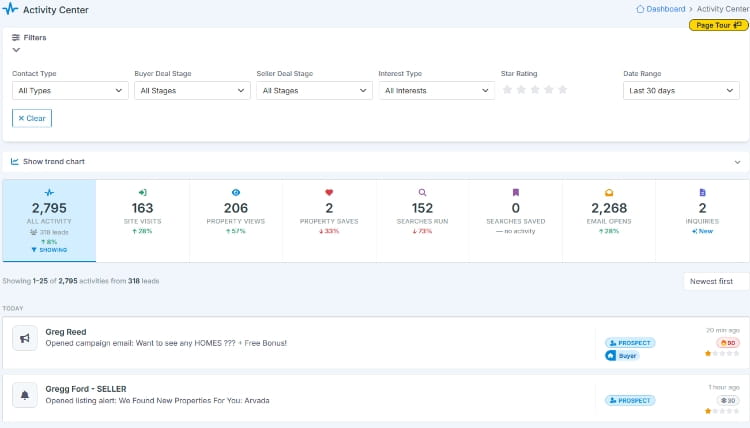
How the Page Is Laid Out
1
Filters
Choose whose activity you see
Click Filters to open or close the filter bar. Filters apply instantly, and you can combine as many as you like.
| Filter | Shows activity from |
|---|---|
| Contact Type | Leads of one Contact Type, such as Client or Past Client |
| Buyer Deal Stage | Leads at one stage of the Buyer Pipeline, such as Searching |
| Seller Deal Stage | Leads at one stage of the Seller Pipeline, such as Listed |
| Interest Type | Buyers, Sellers, Renters or Investors |
| Star Rating | Leads with at least the number of stars you click. Click the same star again to clear it |
| Date Range | The last 7, 30 (the default) or 90 days |
Each active filter appears as a pill below the filter bar. Click the × on a pill to remove that filter, or Clear to reset them all.
2
Trend Chart
Is engagement going up or down?
Click Show trend chart to see daily activity for the selected date range and filters. Click a series in the legend, such as Property Views, to hide or show it.
3
Stats Bar
Counts that double as filters
The stats bar counts each type of activity for your current filters, with an up or down indicator comparing it to the previous period of the same length. Click any cell to show only that type of activity in the stream.
| Cell | Counts |
|---|---|
| All Activity | Everything, plus how many different leads were active |
| Site Visits | Times leads signed in to your website |
| Property Views | Property detail views |
| Property Saves | Properties saved as favorites |
| Searches Run | Property searches |
| Searches Saved | Searches saved by leads |
| Email Opens | Opens and clicks on listing alerts, campaign emails and other emails |
| Inquiries | Form submissions, such as showing requests and questions |
4
Activity Stream
Who did what, and when
Each row is one event, showing the lead's name, score, star rating, Contact Type and interests, what they did and when. Property entries include the photo and listing details. The heading shows how many activities and leads match, for example Showing 1-25 of 312 activities from 47 leads.
Sort by Newest first or Oldest first, and use the page buttons to see more (25 per page). Click a lead's name to open their Lead Dashboard.
For Team Leaders and Account Admins
CRM Agents always see activity from their own leads. On Team and Office accounts, Account Admins and users with permission to manage account leads also see Activity Scope at the bottom of the filter bar:
- My - your own leads (the default).
- Team - all leads in the account.
- Unassigned - leads with no agent yet, so you can spot active leads that need to be assigned.
Use the dropdown below the switch to view a single agent's leads. The Unassigned Lead Activity button on Dashboard Home opens the Activity Center with Unassigned already selected.
Put It to Work

Example: Find Past Clients Who Are Shopping Again
Repeat business hiding in plain sight
- Set Contact Type to Past Client and Date Range to Last 30 days.
- Click the Property Views cell.
- Any past client in the list is browsing homes. They may be thinking of moving, buying an investment property, or helping a family member. Give them a friendly call.
Example: Check In on Active Buyers
Stay one step ahead of your best prospects
Set Buyer Deal Stage to Searching, Star Rating to 4 stars and Date Range to Last 7 days. Click Property Saves to see the homes your best buyers saved this week, a perfect list of showing suggestions for your next conversations.
Example: Team Leaders, Catch Unassigned Leads
Active leads shouldn't wait for an agent
Click Unassigned in Activity Scope, then the Inquiries cell. Any lead here has asked for something and has no agent. Open the lead and assign them right away.
Frequently Asked Questions
How is this different from Recent Activity on my Dashboard Home?
Recent Activity is a quick glance at the latest events. The Activity Center covers up to 90 days and adds filters, counts, a trend chart and paging, so you can dig into specific groups of leads.
Why is the stream empty?
Your filters may be too narrow. Remove a filter pill or two, or set Date Range to Last 90 days. Filters by deal stage or Contact Type only find leads you have classified, so keeping your leads classified makes the Activity Center more useful. See How to Categorize Your Leads.