
The Activity tab is a timeline of everything a lead has been doing on your website over the last 90 days: the homes they viewed and saved, the searches they ran, the alerts and emails they opened, the forms they submitted and the messages they sent you.
Why it matters: Timing is everything in real estate. The Activity tab shows you what a lead did and exactly when they did it, so you can reach out while they are still thinking about that home, and refer to the specific properties they care about.
Where to Find It
Go to and click a lead's name to open their Lead Dashboard. The Activity tab is the first of the three tabs and opens by default. The number on the tab shows how many things the lead has done in the last 90 days.
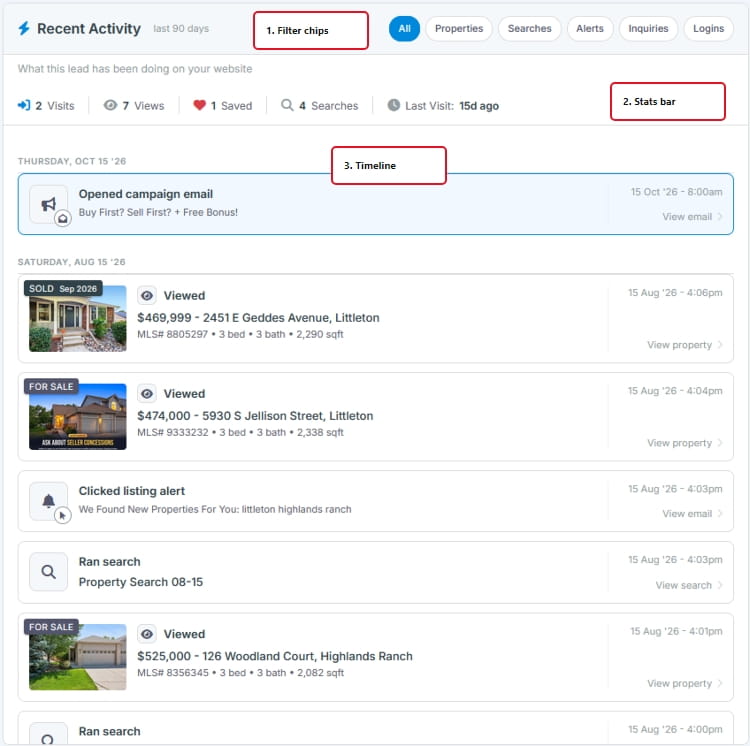
How the Tab Is Laid Out
1
Filter Chips
Focus on one kind of activity
| Chip | Shows |
|---|---|
| All | Everything (the default) |
| Properties | Homes the lead viewed or saved |
| Searches | Searches they ran or saved |
| Alerts | Emails they opened or clicked: listing alerts, campaign emails, market reports, newsletters and emails you sent |
| Inquiries | Forms they submitted, such as a showing request or a question, and when they created an account |
| Logins | Each time they signed in to your website, with the device they used |
2
Stats Bar
The headline numbers at a glance
| Stat | What it counts |
|---|---|
| Visits | Times the lead signed in to your website in the last 90 days |
| Views | Property views in the last 90 days |
| Saved | All properties the lead has saved as favorites |
| Searches | Searches run or saved in the last 90 days |
| Last Visit | How long ago the lead last did anything, such as visiting your website, opening an email or submitting a form |
3
The Timeline
Newest first, grouped by day
Entries are grouped under day headings (Today, Yesterday, then the date), with the most recent at the top. Each entry shows what happened and the date and time in your time zone. The timeline shows 25 entries per page, with page buttons at the bottom.
Property entries show the listing photo with the price, address, MLS number, beds, baths and square footage, for example:
Viewed (3x)
$875,000 - 1525 S Sherman Street, Denver
MLS# 1234567 • 3 bed • 2 bath • 1,777 sqft
A Rent / Lease label marks rental listings, and Off Market replaces the photo when a listing is no longer available.
What Each Entry Means
| Entry | What happened | Click to |
|---|---|---|
| Viewed / Viewed (3x) | The lead viewed a property. Repeat views are combined into one entry with a count. A star badge shows if the lead rated the home | View the property |
| Saved | The lead saved a property to their favorites | View the property |
| Ran search / Saved search | The lead ran a search (with the number of results) or saved one | View the search |
| Opened listing alert / Clicked listing alert | The lead opened a listing alert email or clicked a link in it. Campaign emails, market reports, newsletters and your own emails appear the same way, for example Opened campaign email | View the email |
| Requested showing, Requested info, Asked a question, Contact request and other form entries | The lead submitted a form. Property forms show the listing. Each submission appears once | Open the task (see below) |
| Created account | The lead signed up on your website. A Signed in badge means they were signed in at the same time | - |
| Message sent to [agent] | The lead emailed you. An automatic reply from the lead's mailbox, such as an out-of-office, shows as Auto-reply sent | View the message. Use the reply and phone icons to respond |
| Logged in | The lead signed in to your website, with the device and browser | - |
Showing and info requests are tasks: When a lead requests a showing or more information, the entry is linked to the follow-up task created for it. An open request shows Open task, so you can respond and complete it right from the timeline. Once completed, the entry is dimmed and shows a Completed badge with the date.
The Activity tab shows what the lead did. Emails and messages you send, calls and notes are on the Communications tab.
Put It to Work

Example: Respond to an Inquiry in Minutes
Speed to lead wins listings and buyers
Under Today you see Requested showing for a home on Maple Avenue, and just below it the lead viewed the same home three times.
- Click the showing request to open the task and see the date and time they asked for.
- Call the lead to confirm. Mention the details they kept coming back to.
- Complete the task with the outcome. The entry is marked Completed, so your team can see it has been handled.
Example: See Whether Your Alerts Are Working
Opens and clicks tell you what is landing
Click the Alerts chip. A steady run of Clicked listing alert entries followed by property views means the alert is matching what the lead wants. Opens without clicks, or nothing at all, suggest the criteria need a refresh. Combine this with Property Engagement to see what they are browsing instead.
Frequently Asked Questions
Why don't I see the listing alerts that were sent?
The Activity tab only shows things the lead did, so an alert appears here when the lead opens or clicks it. Every alert sent is listed on the Communications tab.
Can I see activity older than 90 days?
The Activity tab covers the last 90 days, which keeps the focus on what the lead is doing now. Properties the lead has saved are always shown on the Listings tab, and every communication is on the Communications tab, however old.
Why does the tab say "No activity in the last 90 days"?
The lead has not visited your website, opened an email or submitted a form recently. This is common for leads you imported or added yourself. A listing alert or drip campaign is the easiest way to bring them back.