
The Communications tab is the complete record of your conversation with a lead: every call, email, text message and note, plus the listing alerts, market reports, campaign steps and automatic replies Buying Buddy sent on your behalf. It covers the whole history of the lead, not just recent activity.
Why it matters: Nothing undermines trust faster than asking a client something they already told you. With every touchpoint in one place, you, your teammates and anyone who takes over the lead can pick up the conversation exactly where it left off.
Where to Find It
Go to and click a lead's name to open their Lead Dashboard, then click the Communications tab. The number on the tab is the lead's total touchpoints.
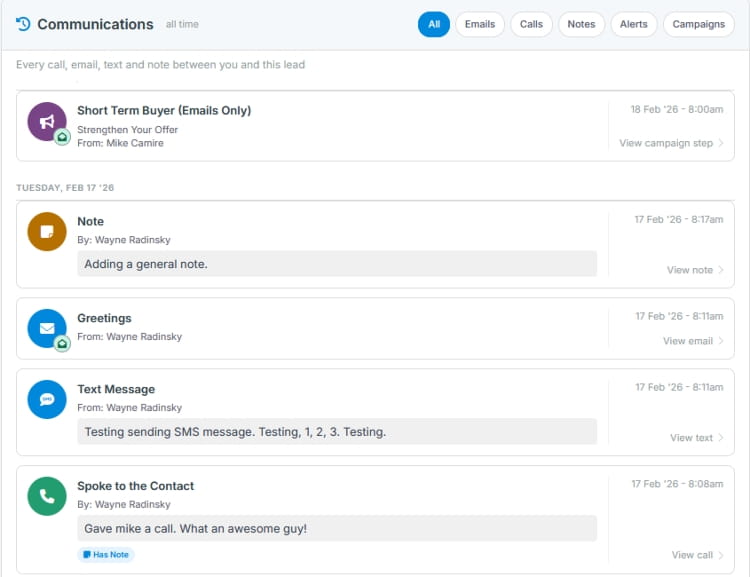
How the Tab Is Laid Out
1
Summary Bar
When you last reached out, and how it went
| Item | What it shows |
|---|---|
| Last Call | How long ago the last call was logged, with a badge for the outcome: Spoke, Message or No Answer |
| Last Manually Sent Email | How long ago the last one-to-one email was sent (not campaign emails), with a badge showing Sent, Opened or Clicked |
| Touchpoints | The total number of calls, emails and notes logged for this lead |
2
Filter Chips
Narrow the list to one channel
| Chip | Shows |
|---|---|
| All | Everything, including text messages and completed tasks and meetings (the default) |
| Emails | One-to-one emails you sent the lead and emails they sent you |
| Calls | Logged calls, with the outcome and any call notes |
| Notes | Notes added to the lead |
| Alerts | Listing alerts and market reports sent to the lead |
| Campaigns | Steps from drip campaigns the lead is enrolled in |
3
The Timeline
Newest first, grouped by day, one entry per real event
Entries are grouped under day headings (Today, Yesterday, then the date) with the date and time on the right in your time zone. Each email or message appears once, even when it was recorded in more than one place. The timeline shows 50 entries per page.
Click any entry to open it. Emails, listing alerts and market reports open the email exactly as it was sent. Calls, notes and messages open in a read-only view.
What Each Entry Means
| Entry | What you see |
|---|---|
| Call | The call outcome as the heading, for example Left Voicemail, with who made the call and any notes you added |
| Email you sent | The subject line and who sent it. A small corner icon shows whether the lead has opened the email or clicked a link in it |
| Message received for [agent] | An email from the lead, with its subject. Use the reply and phone icons on the right to respond straight away. Out-of-office and other automatic replies show as Auto-reply received |
| Text Message / Text Received | Text messages you sent or received, with the message itself (when Buying Buddy Text Messaging is enabled) |
| Note | The full note and who added it. Notes created when the lead was imported show By: CSV Import or By: API Import |
| Listing alert | The alert email's subject and how many listings it included. The corner icon shows whether it was opened or clicked |
| Market report | The report email's subject and the report name |
| Campaign step | The campaign name as the heading, with the step below it, such as the email subject or the task name |
| Autoresponder | An automatic reply Buying Buddy sent the lead, such as the confirmation after they submitted a form. Form confirmations are labeled Autoresponder confirming receipt of submitted form and link to the follow-up task (Open task) |
Watch for delivery problems: A listing alert or market report marked Undeliverable bounced or failed, and one marked Spam was reported as spam by the lead's email provider. Check the lead's email address, and consider a call or text instead.
To see what the lead did on your website, such as homes viewed and forms submitted, use the Activity tab.
Put It to Work

Example: Take Over a Lead from a Teammate
Get up to speed in two minutes
A lead has just been reassigned to you. Before your first call:
- Check the summary bar. Last Call shows 12 days ago with a Message badge, so the last attempt went to voicemail.
- Click Notes and Calls to read what your teammate learned: budget, timing and must-haves.
- Click Campaigns to see which automated emails the lead has already received, so you don't repeat them.
- Introduce yourself and pick up where the conversation left off.
Example: Follow Up on an Email That Was Opened
An open is a reason to reach out
You sent a lead a list of new homes yesterday. The corner icon on that email now shows it was clicked. That is a warm signal: call today and ask which of the homes caught their eye. If there has been no open after a few days, try a different subject line or a quick text instead.
Frequently Asked Questions
How do I add a call, note or email?
Use the Call and Email buttons at the top of the Lead Dashboard, or Add Note from the More (⋮) menu. Whatever you log appears on the Communications tab straight away.
Why don't campaign emails appear under the Emails chip?
The Emails chip shows your one-to-one emails so they are easy to find. Campaign emails are under the Campaigns chip, and everything appears together under All.
Why do I see emails I didn't send myself?
Buying Buddy sends some emails on your behalf: listing alerts, market reports, drip campaign steps, and automatic replies when a lead submits a form or creates an account. They all appear here so you know exactly what the lead has received from you.