
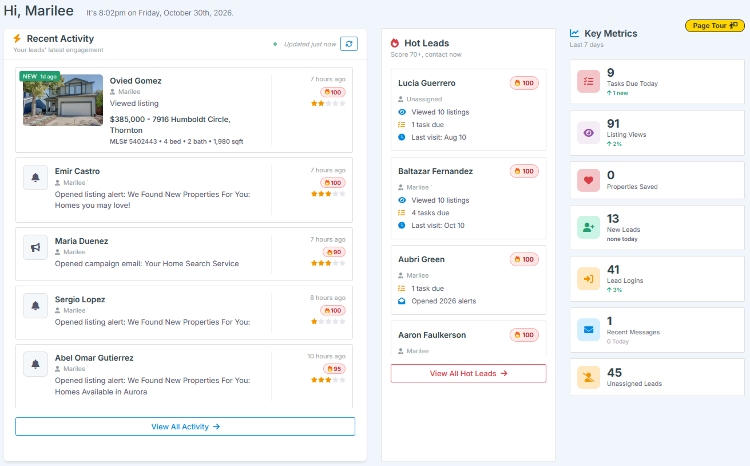
Your Dashboard Home is the first screen you see when you sign in to Buying Buddy. It answers one question: who needs my attention today? In one view you see what your leads are doing right now, which leads are hottest, how your week is going, and where there are gaps in your follow-up.
Why it matters: The best time to call a lead is while they are actively looking. Dashboard Home brings those moments to you, so you can start every day with the right calls instead of scrolling through a list of names.
Where to Find It
Dashboard Home opens when you sign in. To return to it at any time, go to . Click Page Tour at the top right for a quick guided walk-through.
What's on Your Dashboard
1
Recent Activity
Your leads' latest engagement
A live feed of what your leads have been doing over the last 30 days: homes viewed and saved, searches, alert and email opens, form submissions and messages, with the newest at the top. Click Refresh to update it, or View All Activity to open the Activity Center with full filters.
Click a lead in the feed to open a quick preview without leaving the page (see Lead Preview below).
2
Hot Leads
Score 70+, contact now
Your top 10 leads with an Activity Score of 70 or more. Each one shows a few lines explaining why they are hot, such as how many listings they viewed, favorites saved, alerts opened, tasks due and when they last visited. Click the score to see how it was calculated.
Click View All Hot Leads to see every lead scoring 70 or more on Lead Summary. When nobody is hot, the panel shows No hot leads right now.
3
Key Metrics
Your last 7 days at a glance
Each card shows a count, a small change indicator, and opens the matching list when you click it.
| Card | Counts | Change indicator |
|---|---|---|
| Tasks Due Today | Your open tasks that are due today or overdue | How many became due today |
| Listing Views | Property views by your leads in the last 7 days | % change from the previous 7 days |
| Properties Saved | Properties your leads saved in the last 7 days | % change from the previous 7 days |
| New Leads | Leads added in the last 7 days | How many arrived today |
| Lead Logins | Times your leads signed in to your website in the last 7 days | % change from the previous 7 days |
| Recent Messages | Emails and texts your leads sent you in the last 7 days | How many arrived today |
| Unassigned Leads | Leads in the account with no agent assigned (managers only) | - |
4
Lead Health
Issues and gaps to fix
Lead Health counts the leads that are missing something important. The counts update overnight. Click any number to see those leads and fix them.
| Item | Leads that... |
|---|---|
| No Alerts | Have no active listing alert |
| Expiring Alerts | Have listing alerts about to expire |
| No Campaigns | Are not enrolled in any drip campaign |
| Bad Emails | Have an invalid or bouncing email address |
| Never Emailed | Have never been sent an email |
| Never Called | Have never been called |
5
Report Center
All your reports in one place
The Report Center card takes you to lead activity, behavior, alerts, drip campaign and maintenance reports.
Lead Preview
Click a lead in Recent Activity or Hot Leads and a preview slides out with their contact details, star rating, Activity Score, Contact Type, interests and recent activity. From the preview you can:
- Call - call the lead and log the outcome.
- Email - send an email.
- View - open their full Lead Dashboard.
For Team Leaders and Account Admins
On Team and Office accounts, Account Admins and users with permission to manage account leads see some extras:
- Dashboard For: choose an agent to see Dashboard Home exactly as they see it. It always shows one person at a time. For account-wide activity, use the Activity Center.
- View My Team Dashboard: opens the Team Leader dashboard.
- Unassigned Lead Activity: opens the Activity Center showing what unassigned leads are doing, so nothing slips through while waiting for an agent.
- Team Snapshot: four team numbers: Pipeline, Hot Leads, At Risk and Close 30d, with a link to Open Team Dashboard.
- The Unassigned Leads card in Key Metrics, and the assigned agent's name on each Hot Lead.
Agents whose team leader has shared coaching notes with them see a From your Team Lead card above Key Metrics.
Put It to Work

Example: A 10-Minute Morning Routine
Start the day with the calls most likely to pay off
- Tasks Due Today: clear anything overdue first.
- Recent Messages: reply to anyone who has written to you.
- Hot Leads: work down the list. Open each preview, glance at why they are hot, and click Call.
- Lead Health: pick one gap, such as No Alerts, and fix a few leads each day.
Example: Spot a Trend Before It Becomes a Problem
Use the change indicators
If Listing Views and Lead Logins are both down sharply this week, your leads are not coming back to your website. Check Lead Health for leads with No Alerts or Expiring Alerts. Fresh, well-targeted listing alerts are the quickest way to bring them back.
Frequently Asked Questions
Whose leads does my dashboard show?
Your own: the leads assigned to you. Team leaders and Account Admins can use Dashboard For to view another agent's dashboard.
Why didn't a Lead Health number change after I fixed some leads?
Lead Health counts update overnight, so your changes show the next day. The lists they open are always current.
Are archived leads included?
No. Leads with the Contact Type Archived or Bogus are left out of Hot Leads and the dashboard counts.