
The Buying Buddy widgets work with any custom website environment that uses PHP such as Laravel, or with CSS frameworks such as Bootstrap. This guide will walk you through the three main steps to get Buying Buddy running on your PHP website.
Get SEO Indexable Content with the Buying Buddy SDK For PHP: An optional SDK is available for advanced PHP programmers that allows you to update the page HTML with values coming from the API. See Buying Buddy PHP Class and API for SEO-friendly pages with pre-populated fields and forms.
Installation Steps
1
Add Buying Buddy Plugin to Your Site
Install the JavaScript library site-wide
Critical: The plugin JavaScript should only be added ONCE to your site's header. Ensure it loads at the end of the <head> section on every page.
Get Your Plugin Code:
- In your Buying Buddy dashboard go to Installation and Setup
- Select your website and ensure it's set as a PHP site on the "Get Ready" tab
- Go to the "Add Plugin" tab and copy the JavaScript code
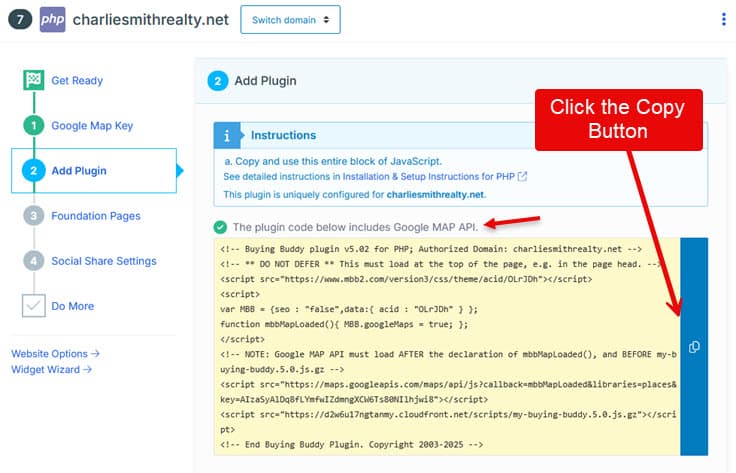
Install the Plugin:
- Edit your PHP site and add the JavaScript code so that it loads the end of the <head> section on every page
- Do not modify the code in any way
- Save your changes
Add the Disclaimer Widget (Recommended):
While setting up your site framework, add the disclaimer widget to your footer to keep pages clean. This displays required MLS disclaimers in your footer instead of under each widget.
<bb-widget data-type="Disclaimer"></bb-widget>
You can customize colors using the Widget Wizard. See Disclaimer Widget Reference for more details.
2
Create Foundation Pages
Set up the four required Buying Buddy pages
Important: Buying Buddy uses four Foundation Pages. Three of them are Utility Pages (Results, Property Details and Market Report) that should NOT be added to your main navigation - their content is generated dynamically when a visitor runs a search, views a property, or opens a market report. The fourth is a Feature Page (Community Hub), which displays your default Community group and CAN be added to a menu if you wish. Add only one Buying Buddy widget to each page, and make sure all four page addresses match your Buying Buddy account settings.
Create the Pages:
- Results Page (not in menu)
- Property Details Page (not in menu)
- Market Report Page (not in menu)
- Community Hub Page (can be in a menu if desired)
- Create 4 new blank pages in your PHP site
- Suggested titles: "Results", "Details", "Market Report" and "Community Hub"
- Recommended page slugs: "/listing-results", "/listing-details", "/market-area-report" and "/featured-communities" (these slugs can be anything you like as long as they match the Foundation Page settings)
- Do not add the Results, Details and Market Report pages to your main navigation menu. The Community Hub page can be added to a menu if you wish.
Add Widgets to Pages:
For the Results page:
- Edit your "Results" page
- Paste this code:
<bb-widget data-type="ListingResults"></bb-widget>
- Save your page
- Preview the page to verify the widget displays (on authorized domains only)
For the Details page:
- Edit your "Details" page
- Paste this code:
<bb-widget data-type="SearchDetails"></bb-widget>
For the Market Report page:
- Edit your "Market Report" page
- Paste this code:
<bb-widget data-type="MarketReport"></bb-widget>
For the Community Hub page:
- Edit your "Community Hub" page
- Paste this code:
<bb-widget data-type="Communities"></bb-widget>
Add a Search Form (for testing):
Create a search form on any other page (not on your Results, Details, Market Report or Community Hub pages) using:
<bb-widget data-type="SearchForm"></bb-widget>
Configure Foundation Page Settings:
- Return to your Buying Buddy dashboard
- Go to and click the "Foundation Pages" tab
- Verify page addresses match your actual page slugs (e.g., "/listing-results", "/listing-details", "/market-area-report" and "/featured-communities")
- Update if needed to match your site's page structure (some sites may need ".php" extensions)
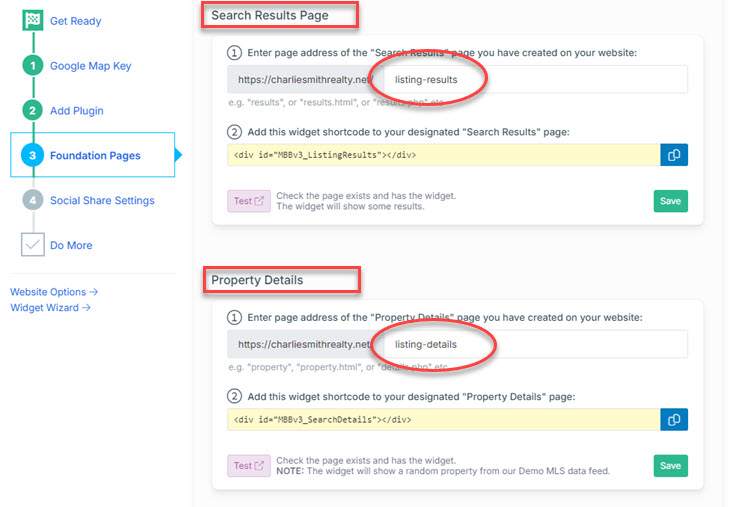
Important: Use the actual page names for YOUR site - don't assume they match the examples shown.
3
Enable Property Sharing
Set up social media sharing with correct listing photos
Important: If you are using the SDK for PHP, this section does not apply. The SDK will enable the writing of META data on the server to create property details pages with relevant META data that is needed for Social Share (and SEO).
For standard PHP installations (not using the SDK), you'll need to configure social sharing settings to ensure property listings display correctly when shared on social media platforms.
To allow visitors to share properties from your website on Facebook and other social media platforms with the correct listing photos and details, you'll need to set up a "bb" subdomain for your domain.
Setup Options: You can use either Cloudflare (recommended for free SSL certificates) or your current domain registrar.
The Social Media Sharing Setup Instructions will guide you through both options.
Next Step:
Note: Your Buying Buddy dashboard has customized instructions for your domain in the Installation and Setup section (Social Share Settings tab) of your Buying Buddy account.Widgets - Installation and Setup : Social Share tab
Troubleshooting
Domain Authorization Issues
If you see "Sorry this domain is not authorized", the widgets are working correctly but your domain isn't authorized. This commonly happens with staging/development domains.
Solutions:
- For live sites: Ensure your actual domain name is applied and working, then view the live site
- For development: Contact support via the Help Desk to temporarily add your staging domain as a free authorized domain
Next Steps
Your PHP site is now ready for advanced Buying Buddy features! Consider adding:
- Featured Listings pages to display your own listings
- Sold properties displays
- Neighborhood pages with properties for specific areas
- Lead capture forms connected to Buying Buddy CRM
- Contact forms
- Custom styling with Widget Themes
For inspiration, view our demonstration sites:
- https://charliesmithrealty.com (WordPress)
- https://charliesmithrealty.net (HTML/PHP)
Need additional help? Contact our support team through your Buying Buddy dashboard.