

This guide will walk you through installing and setting up Buying Buddy on your HighLevel website. The process involves three main steps that we'll cover in detail.
New to Buying Buddy on HighLevel? Installing property search is one step of the full setup. Start with Getting Started with Buying Buddy on HighLevel for the complete journey - installing search, embedding your dashboard, and syncing leads in both directions.
Using HighLevel AI Studio? These instructions are for standard HighLevel sites only.
If your site was built with HighLevel AI Studio (the AI website/app builder), do not follow this guide as it will fail.
Instead, follow the dedicated Install Buying Buddy on Highlevel Ai Studio guide.
Multiple Websites: If you have created multiple websites for the same domain name inside your HighLevel account, you will need to add the Buying Buddy JavaScript Library Code to each of them following the instructions below.
Custom Menu Links
Embed your Buying Buddy Dashboard as a menu item inside HighLevel. Each agent uses their own Embed Key so they see their own private dashboard.
See Embed Your Buying Buddy Dashboard in Another Platform.
Installation Steps
1
Add Buying Buddy Plugin to Your Site
Install the JavaScript library site-wide
Get Your Plugin Code:
- In your Buying Buddy dashboard go to Installation and Setup
- Select the appropriate website at the top. On the Get Ready tab make sure that your site is set as a HighLevel site.
- Go to the "Add Plugin" tab and copy the JavaScript code that is your Buying Buddy Plugin.

Install the Plugin:
- Go to your HighLevel dashboard
- Go to Sites, then Websites. Click the website name to Edit your website.
- On the Site Menu, click the Settings tab.
- Paste the entire Buying Buddy Plugin JavaScript into the Head Tracking Code field
- Save

Critical: Ensure that the Buying Buddy JavaScript is ONLY added once using the method described above. If you have multiple websites using the same domain name, then repeat this step for each website in your HighLevel account.
2
Add Disclaimer Widget
Install the Disclaimer widget site-wide
Note: You should add the Disclaimer Widget to the Global Footer so that it shows on every page. This is not required, however if you don't do this, then the mandatory MLS disclaimer text and terms will be shown directly underneath all widgets. The Disclaimer Widget helps keep your pages clean by showing the required disclaimers in the footer area.
Disclaimer Widget Colors: The widget will display dark gray text on a panel with a white background. To blend this widget with your website footer, the color of the disclaimer text and panel background can be modified, e.g. white text on a transparent background. Use the Widget Wizard in your Buying Buddy account to create a Disclaimer widget with color options.
Steps:
- In the Website menu - click Pages
- Edit your Home page, or any page that has the Global Footer
- First, identify the Global Footer: In the Page Editor - scroll right to the bottom and make sure you can identify the section that is the Global Footer. When you hover your mouse over this section - the label "Global Footer" will be shown at the bottom.

- Click toolbar at the top, click the "+" icon to Add Elements.

- Click and drag the Code element to the Global Footer and place this after all other content in the footer.
- Ensure that the Custom Code Element is selected. On the right side of the screen, click Open Code Editor.
- Copy this code for the Disclaimer Widget and paste to the Code Editor - then SAVE:
<bb-widget data-type="Disclaimer"></bb-widget>

See Disclaimer Widget Reference to learn more about this.
3
Create Foundation Pages
Set up the four required Buying Buddy pages
Important: Buying Buddy uses four Foundation Pages. Three of them are Utility Pages (Results, Property Details and Market Report) that should NOT be added to your menus - their content is generated dynamically when a visitor runs a search, views a property, or opens a market report. The fourth is a Feature Page (Community Hub), which displays your default Community group and CAN be added to a menu if you wish. Add only one Buying Buddy widget to each page, and make sure all four page addresses are entered in the Foundation Pages settings in your Buying Buddy account.
Create the Pages:
Create 4 new pages that are required for Buying Buddy:
- Results Page (not in menu)
- Property Details Page (not in menu)
- Market Report Page (not in menu)
- Community Hub Page (can be in a menu if desired)
- On the Site Menu, click the "+ Add new Page" button on the right
- Create four BLANK PAGES with the following settings:
- Name for Page: We suggest you give them appropriate titles, such as "Results", "Details", "Market Report" and "Community Hub".
- Path: To match the default page addresses we use in your Buying Buddy account, give these pages Paths of /listing-results, /listing-details, /market-area-report and /featured-communities.
However, these page Paths (slugs) can be anything you like as long as they match the Foundation Page settings.

Add Widgets to Pages:
Each Foundation Page holds exactly one Buying Buddy widget. The steps below use the "Results" page as the example - repeat the same process for each of the four pages, pasting that page's widget code.
- Edit the page
- Add a Custom Code element to the page
- Ensure that the Custom Code Element is selected. On the right side of the screen, click Open Code Editor
- Paste the widget code for that page (shown below) and SAVE
For the Results page:
<bb-widget data-type="ListingResults"></bb-widget>
For the Property Details page:
<bb-widget data-type="SearchDetails"></bb-widget>
For the Market Report page:
<bb-widget data-type="MarketReport"></bb-widget>
For the Community Hub page:
<bb-widget data-type="Communities"></bb-widget>
VERIFY: Once you have SAVED each page, preview it to confirm the Buying Buddy widget is displayed. Widgets display on your authorized domain only (they will not display on a sandbox development domain).
Add a Search Form (for testing):
Finally, paste the following Quick Search Form widget to any other page using the process described above (this is for testing the search - this is not a foundation page). Do not add the search widget to your Results, Details, Market Report or Community Hub pages as this will break the widgets.
<bb-widget data-type="QuickSearch" data-filter="formType:simple1"></bb-widget>
Configure Foundation Page Settings:
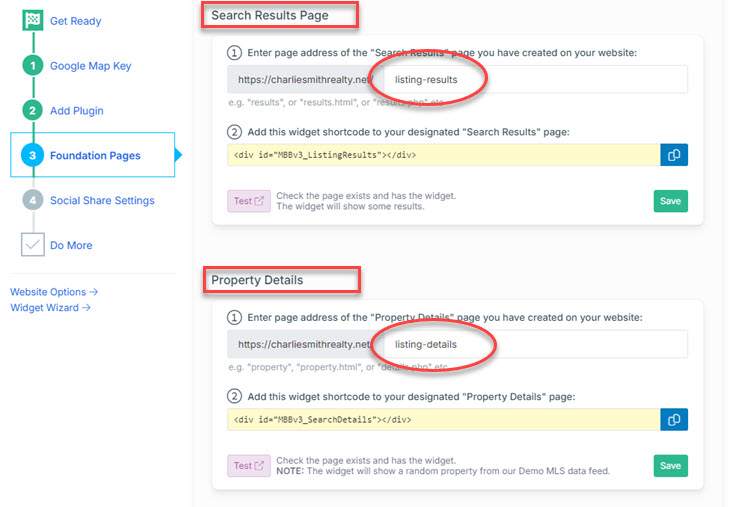
It's important that the Buying Buddy system knows the page addresses you used for your Foundation Pages. Buying Buddy needs to know where to send visitors to show search results, property details, market reports and community pages, and where to direct your leads (via emails etc.).
- In your Buying Buddy dashboard, navigate to Installation and Setup
Then select the domain. - Click the "Foundation Pages" tab to review the page addresses of the Foundation Pages
- Check the page addresses shown for the Results, Details, Market Report and Community Hub pages, and update them if needed
- Make sure each address matches the actual Path of the page you created. The default addresses are usually /listing-results, /listing-details, /market-area-report and /featured-communities
Multiple Websites: If you have multiple websites using the same domain name, then DO NOT create these pages for each site.
4
Enable Property Sharing
Set up social media sharing with correct listing photos
To allow visitors to share properties from your website on Facebook and other social media platforms with the correct listing photos and details, you'll need to set up a "bb" subdomain for your domain.
Setup Options: You can use either Cloudflare (recommended for free SSL certificates) or your current domain registrar.
The Social Media Sharing Setup Instructions will guide you through both options.
Next Step:
Note: Your Buying Buddy dashboard has customized instructions for your domain in the Installation and Setup section (Social Share Settings tab) of your Buying Buddy account.Widgets - Installation and Setup : Social Share tab
Troubleshooting
Domain Authorization Issues
If you see a message that says "Sorry this domain is not authorized", then this means that the Widgets and Plugin JavaScript are indeed working correctly, BUT that your page address is a domain that is not authorized to display Buying Buddy Widgets. It is probably a subdomain that your development environment has applied while you are in the editor of your website.
There are two options for dealing with this:
- Make sure your actual domain name is applied and working - and then view the "live" site in which case widgets will be displayed correctly. You can then choose to ignore this message while in development.
- If you need to do more extensive development then you can request (via Help Desk) to add your staging / development domain as an extra (free) "authorized" domain on your account. We call this a 'sandbox' development URL and it would be authorized temporarily while you do development.
Next Steps
Your HighLevel site is now ready for advanced Buying Buddy features! Consider adding:
- Featured Listings page to display your own listings
- Sold properties displays
- Neighborhood-specific property pages
- Lead capture forms that send leads directly to the Buying Buddy CRM
- General contact form widgets
- Custom styling with Widget Themes
For inspiration, view our demonstration site: https://charliesmithrealty.net
Need additional help? Contact our support team through your Buying Buddy dashboard.