
This REACT guide covers how to add Buying Buddy widgets to React-based applications and React-powered website builders. It is intended for developers comfortable with React, JSX, and modern JavaScript tooling.
Applies to: Gatsby, Remix, Vite + React, Create React App, and React-based site builders. For Framer, follow the dedicated Install Buying Buddy on Framer guide, which uses a ready-made single-file component.
Using Next.js? Follow the dedicated Install Buying Buddy on Next.js guide instead. It covers both the AI-prompt and manual install routes for the App Router and the Pages Router, with the Next.js-specific provider, script, and troubleshooting details. This article covers the other React frameworks - Vite, Create React App, Gatsby, and Remix.
Using an AI website builder? If your site is built with an AI website builder - such as HighLevel AI Studio, Replit, GoDaddy Airo, Lovable, Bolt, or v0 - follow Install Buying Buddy in AI Builders that use React instead. That guide uses your dashboard's ready-made AI prompts to set everything up for you. This article is for developers integrating Buying Buddy into a React codebase by hand.
How to Install
The recommended way to add Buying Buddy to a React project is the official package, @buyingbuddy/react. It is built specifically for React and handles the widget lifecycle correctly, including in single-page apps. A manual <script>-based method is also available as a fallback for the rare project that cannot add an npm dependency.
Method 1 - The @buyingbuddy/react package (Recommended)
Idiomatic React components - no script tags to manage
An npm package that wraps the Buying Buddy widget in two React components - <BuyingBuddyProvider> and <BuyingBuddyWidget>. The provider loads the Buying Buddy runtime for you, so there is no script tag to add by hand. This is the right choice for virtually every React project - Vite, Create React App, Gatsby, and Remix.
Method 2 - Manual install (script + bb-widget) - fallback only
Add the plugin script yourself and place widgets directly
Add your personalized Buying Buddy plugin script to the page yourself, then place <bb-widget> elements (directly in JSX on React 19, or through a small wrapper component on any React version). Use this method only if you genuinely cannot add the @buyingbuddy/react package to your project. It requires more care to get right and is not recommended for single-page apps, where the package is the reliable choice.
Important Notes Before You Begin
Account: The widgets will not load without a valid Buying Buddy account, and there is no anonymous or "try it" mode. You do not need to look up your activation key - the personalized instructions on your Installation and Setup page () already include it where it is needed. Don't have an account yet? Start a free trial or buy a license.
Domain Authorization: Buying Buddy widgets only load on domains registered to your account. On an unauthorized domain you will see a "Sorry, this domain is not authorized" message. Local addresses such as localhost are not currently supported, but you can use a sandbox, staging, or development domain - just contact support via the Help Desk to request that it be added as an authorized domain.
Client-Side Rendering & SEO: Buying Buddy widgets render in the browser after the runtime loads - their content is not server-rendered and is not present in the initial HTML.
React version: The package requires React 18 or 19 as a peer dependency. The manual method works on any modern React version.
Content-Security-Policy (CSP): Most React sites do not set one, and if yours does not, you can skip this. But if your site sends a Content-Security-Policy header, it will block the Buying Buddy runtime, the interactive map, and listing photos unless you explicitly allow their hosts. The symptom is often a generic "Failed to load BuyingBuddy script" message, or a map and photos that never appear. See Widgets, map, or listing photos blocked by a Content-Security-Policy under Troubleshooting for the directives to add.
How Buying Buddy Widgets Work in React
Buying Buddy widgets are implemented as HTML Custom Elements (<bb-widget>), registered by the plugin runtime. They use the standard Custom Elements lifecycle - specifically connectedCallback - so a widget initializes the moment its element is attached to the DOM, reading its attributes (data-type, data-filter, and so on) at that point.
In plain HTML this is seamless: the element is parsed with its attributes already present. In React, prior to React 19, unknown props on a custom element could be dropped or set as DOM properties instead of HTML attributes - so a widget could initialize without its configuration and render empty. The reliable pattern across all React versions is to create the <bb-widget> element imperatively and set its attributes with setAttribute before attaching it to the DOM.
Good news: The @buyingbuddy/react package does all of this for you internally. If you use Method 1, you never have to think about custom-element attribute handling - you just render a component.
Method 1 - The @buyingbuddy/react Package (Recommended)
1
Install the Package
Add the dependency to your project
Inside an existing React project, install the package and make sure React is present:
npm install @buyingbuddy/react
npm install react react-dom
Starting from scratch? This gets you from nothing to a running page with Vite:
npm create vite@latest my-site -- --template react
cd my-site
npm install
npm install @buyingbuddy/react
npm run dev
Your Personalized Setup Instructions
You do not need to look up your activation key or any other IDs. Your Installation and Setup page - - shows your personalized setup instructions with your activation key already filled in. Copy the <BuyingBuddyProvider> snippet from there and use it in the next step (Step 2).
2
Add the BuyingBuddyProvider
Wrap your app once, near the top of the tree
Add a single <BuyingBuddyProvider> near the top of your component tree. It loads the Buying Buddy runtime for your account once, waits for it to initialize, then renders your widgets. While it loads it shows the optional fallback. Expand the section for your framework below.
Copy the ready-made snippet: Your Installation and Setup page shows the <BuyingBuddyProvider> line with your activation key already filled in - copy it from there. In the examples below, activationKey="your-activation-key" is a placeholder for that value.
Use one provider per page. The Buying Buddy runtime installs a single global, so a page should use one provider with one activationKey. A widget rendered outside a provider will throw an error.
Vite / Create React App
Wrap <App /> in your entry file
Wrap your root component in src/main.jsx (Vite) or src/index.js (CRA):
// src/main.jsx
import { StrictMode } from "react"
import { createRoot } from "react-dom/client"
import { BuyingBuddyProvider } from "@buyingbuddy/react"
import App from "./App.jsx"

createRoot(document.getElementById("root")).render(
    <StrictMode>
        <BuyingBuddyProvider activationKey="your-activation-key">
            <App />
        </BuyingBuddyProvider>
    </StrictMode>
)
Gatsby
Wrap the root element in gatsby-browser.js
Because the provider is client-only, wrap the root element in gatsby-browser.js:
// gatsby-browser.js
import React from "react"
import { BuyingBuddyProvider } from "@buyingbuddy/react"

export const wrapRootElement = ({ element }) => (
    <BuyingBuddyProvider activationKey="your-activation-key">
        {element}
    </BuyingBuddyProvider>
)
Remix
Wrap the Outlet in app/root.tsx
Wrap the <Outlet /> in your app/root.tsx. The provider renders its fallback on the server and loads the runtime once in the browser:
// app/root.tsx
import { Outlet } from "@remix-run/react"
import { BuyingBuddyProvider } from "@buyingbuddy/react"

export default function App() {
    return (
        <BuyingBuddyProvider activationKey="your-activation-key">
            <Outlet />
        </BuyingBuddyProvider>
    )
}
Tip: Pass a fallback prop to show a loading state while the runtime initializes, for example <BuyingBuddyProvider activationKey="..." fallback={<p>Loading...</p>}>. On a load failure the provider shows its own built-in error message in place of your widgets.
3
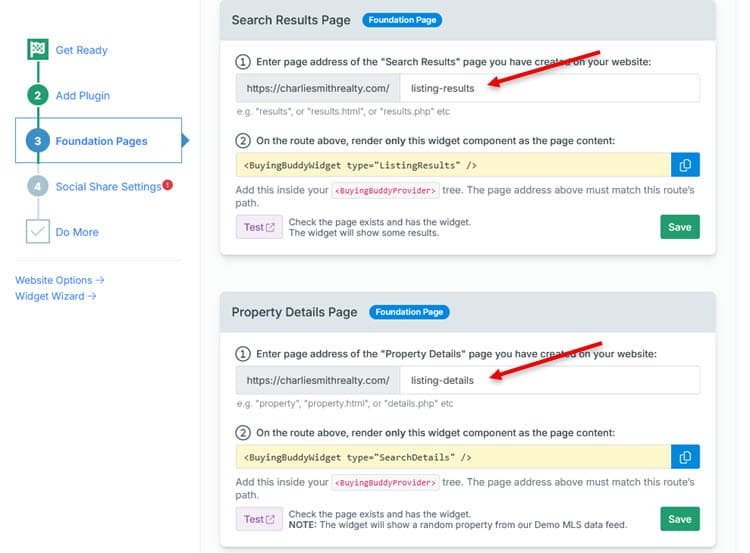
Create Foundation Pages
Results, Details, Market Report, and Communities routes
Important: Buying Buddy uses four dedicated "Foundation Pages" - Search Results, Property Details, Market Report, and Communities Hub. The main page content of each must contain only one Buying Buddy widget (its results, details, market report, or communities widget). It is fine to also have the Disclaimer widget in the page footer and login/account widgets in the header. For a full explanation, see Understanding Foundation Pages.
Create four routes in your application, each rendering a single widget. The pattern is the same for any framework - the import lives wherever your route components live.
// Results route  ->  /listing-results
import { BuyingBuddyWidget } from "@buyingbuddy/react"

export default function ResultsPage() {
    return <BuyingBuddyWidget type="ListingResults" />
}

// Details route  ->  /listing-details
import { BuyingBuddyWidget } from "@buyingbuddy/react"

export default function DetailsPage() {
    return <BuyingBuddyWidget type="SearchDetails" />
}

// Market Report route  ->  /market-area-report
import { BuyingBuddyWidget } from "@buyingbuddy/react"

export default function MarketReportPage() {
    return <BuyingBuddyWidget type="MarketReport" />
}

// Communities route  ->  /featured-communities
import { BuyingBuddyWidget } from "@buyingbuddy/react"

export default function CommunitiesPage() {
    return <BuyingBuddyWidget type="Communities" />
}
Note: SearchResults and ListingResults are interchangeable - both render the same results widget. Likewise SearchDetails and ListingDetails.
Confirm Foundation Page Settings:
- Return to your Buying Buddy dashboard
- Go to
- Verify the page addresses match your route paths:
- Results: /listing-results
- Details: /listing-details
- Market Report: /market-area-report
- Communities Hub: /featured-communities - Update them if your routes use different paths
Important: Do not add a SearchForm or QuickSearch widget to any foundation route (Results, Details, Market Report, or Communities) - this will break widget behavior.
4
Add the Disclaimer Widget
Show the required MLS disclaimer site-wide
Add the Disclaimer widget to a component that renders on every page - typically your site footer or layout - so the required MLS disclaimer appears once, site-wide, instead of under every widget.
// Footer.jsx
import { BuyingBuddyWidget } from "@buyingbuddy/react"

export default function Footer() {
    return (
        <footer>
            {/* ...your footer content... */}
            <BuyingBuddyWidget type="Disclaimer" />
        </footer>
    )
}
5
Add a Search Form & Test
Place a search form and confirm the full flow works
Add a search form to any page other than your Results or Details routes - your home page is a good choice. The type prop maps to the widget's data-type, and filter maps to data-filter.
import { BuyingBuddyWidget } from "@buyingbuddy/react"

// Standard search form
<BuyingBuddyWidget type="SearchForm" />

// Compact one-line quick search
<BuyingBuddyWidget type="QuickSearch" filter="formType:simple1" />

// Featured gallery - 12 of the account's own listings
<BuyingBuddyWidget type="FeaturedGallery" filter="limit:12" />

// Interactive map
<BuyingBuddyWidget type="InteractiveMap" />
Test the Full Flow:
- Run your app on an authorized domain (or your authorized dev domain)
- Submit a search from the search form - you should land on your Results route with listings
- Click a listing - you should land on your Details route showing that property
- Confirm the Disclaimer appears in your footer
Success: If search, results, details, and the disclaimer all work, your Buying Buddy integration is live. Continue to Enable Property Sharing and the optional enhancements below.
Method 2 - Manual Install (Script + bb-widget) - Fallback Only
Use Method 1 (the package) whenever you can. This manual method is a fallback for the rare project that cannot add an npm dependency. It is not recommended for single-page apps: the plugin script scans the DOM on load, but React widgets render afterward, and client-side navigation adds and removes them without the script re-scanning - the exact problem the @buyingbuddy/react package was built to solve.
If you do use this method, you will add your personalized plugin script to the page yourself, then place <bb-widget> elements. The overall sequence - plugin, foundation pages, disclaimer, search form, test - is the same as Method 1.
For the manual method, set your website type to HTML so the dashboard generates the correct personalized plugin script (which already includes your activation key).
- In the top menu, go to Website Options
- Select the Website Settings tab, and in the header click the link to change the website type to HTML
- Open the Installation and Setup page - it will now show your personalized JavaScript plugin (including your activation key) along with the matching instructions
- Copy the plugin JavaScript from the Add Plugin tab
1
Add the Plugin Script Site-Wide
Load it once, in the page head, before widgets mount
The plugin script must load in the <head>, site-wide, and must not be deferred or loaded asynchronously. Use the personalized script you copied in Step 1 (shown below as YOUR_BUYING_BUDDY_PLUGIN.js). Expand the section for your framework.
Vite / Create React App
Add the script tag to index.html
Add the script tag inside the <head> of your index.html:
<!-- index.html -->
<head>
    <meta charset="UTF-8" />
    <meta name="viewport" content="width=device-width, initial-scale=1.0" />
    <title>My App</title>
    <!-- Paste your personalized Buying Buddy plugin script here -->
    <script src="https://www.mbb2.com/.../YOUR_BUYING_BUDDY_PLUGIN.js"></script>
</head>
Gatsby
Using gatsby-ssr.js to inject into the head
In your project root, add or edit gatsby-ssr.js:
// gatsby-ssr.js
import React from "react"

export const onRenderBody = ({ setHeadComponents }) => {
    setHeadComponents([
        <script
            key="buying-buddy-plugin"
            src="https://www.mbb2.com/.../YOUR_BUYING_BUDDY_PLUGIN.js"
        />,
    ])
}
Remix
In the root route head
In your app/root.tsx, add the script to the <head> inside the Layout function:
// app/root.tsx
export function Layout({ children }) {
    return (
        <html lang="en">
            <head>
                <Meta />
                <Links />
                <script src="https://www.mbb2.com/.../YOUR_BUYING_BUDDY_PLUGIN.js" />
            </head>
            <body>
                {children}
                <ScrollRestoration />
                <Scripts />
            </body>
        </html>
    )
}
Critical - all frameworks: Add the plugin script once only, site-wide. Never add it inside individual page components, and do not modify the plugin code.
2
Render Widgets
Place bb-widget elements in your JSX
With the plugin loaded, you can place widgets. There are two approaches depending on your React version.
React 19 - directly in JSX:
React 19 passes unknown props to custom elements as HTML attributes, so you can write the element directly:
<bb-widget data-type="SearchForm"></bb-widget>
<bb-widget data-type="QuickSearch" data-filter="formType:simple1"></bb-widget>
All React versions - a small wrapper component:
For reliability across every React version, create this wrapper once and import it wherever you need a widget. It creates the <bb-widget> element imperatively and sets its attributes before attaching it to the DOM.
// BuyingBuddyWidget.jsx
import { useEffect, useRef } from "react"

export default function BuyingBuddyWidget({ widgetType, filter, className }) {
    const containerRef = useRef(null)

    useEffect(() => {
        const container = containerRef.current
        if (!container) return

        // Clear any existing widget (handles re-renders and filter changes)
        container.innerHTML = ""

        // Create the element imperatively - attributes are set before
        // DOM attachment, so connectedCallback sees them immediately.
        const widget = document.createElement("bb-widget")
        widget.setAttribute("data-type", widgetType)
        if (filter) widget.setAttribute("data-filter", filter)

        container.appendChild(widget)

        return () => {
            container.innerHTML = ""
        }
    }, [widgetType, filter])

    return (
        <div
            ref={containerRef}
            style={{ width: "100%" }}
            className={className}
            suppressHydrationWarning
        />
    )
}
Then use it like any other component:
import BuyingBuddyWidget from "./BuyingBuddyWidget"

<BuyingBuddyWidget widgetType="SearchForm" />
<BuyingBuddyWidget widgetType="FeaturedList" filter="city:denver+price_min:300000" />
Note: This is the same technique the @buyingbuddy/react package uses internally - the package simply packages it (plus script loading) for you.
3
Foundation Pages, Disclaimer, Search Form & Test
Same sequence as the package method
From here, follow the same sequence as Method 1, using <bb-widget> (or your wrapper) instead of <BuyingBuddyWidget>:
- Foundation pages: create four routes - Results (
<bb-widget data-type="ListingResults">), Property Details (<bb-widget data-type="SearchDetails">), Market Report (<bb-widget data-type="MarketReport">), and Communities Hub (<bb-widget data-type="Communities">) - then confirm the slugs in - Disclaimer: add
<bb-widget data-type="Disclaimer">to your footer/layout - Search form: add
<bb-widget data-type="SearchForm">to a page other than Results or Details - Test: search -> results -> details, and confirm the disclaimer renders
<bb-widget data-type="ListingResults"></bb-widget>
<bb-widget data-type="SearchDetails"></bb-widget>
<bb-widget data-type="MarketReport"></bb-widget>
<bb-widget data-type="Communities"></bb-widget>
<bb-widget data-type="Disclaimer"></bb-widget>
<bb-widget data-type="SearchForm"></bb-widget>
Widget Props Reference
When using the @buyingbuddy/react package, <BuyingBuddyWidget> accepts the following props. Only type is required.
| Prop | Type | Description |
|---|---|---|
type | string | Required. The widget to render, e.g. "SearchForm", "FeaturedGallery", "InteractiveMap". |
filter | string | Property filter as +-joined tokens. See the Filter Parameters Reference. |
className | string | CSS class for the wrapper element. |
id | string | HTML id attribute for the widget. |
onWidgetLoaded | function | Callback fired when the widget finishes loading its content. |
The provider, <BuyingBuddyProvider>, accepts activationKey (required) and an optional fallback rendered while the runtime loads.
Available Widget Types for REACT
The table below lists the Buying Buddy widgets in their React form. Pass the value shown to the type prop of <BuyingBuddyWidget> (inside your <BuyingBuddyProvider>). This mirrors the master Published IDX Widget Set - refer to that article for the definitive list.
| Widget | React component |
|---|---|
| Search Form | <BuyingBuddyWidget type="SearchForm"/> |
| Results | <BuyingBuddyWidget type="ListingResults"/> |
| Property Details | <BuyingBuddyWidget type="SearchDetails"/> |
| List of Properties | <BuyingBuddyWidget type="FeaturedList"/> |
| Gallery Display | <BuyingBuddyWidget type="FeaturedGallery"/> |
| Interactive Map | <BuyingBuddyWidget type="InteractiveMap"/> |
| Communities | <BuyingBuddyWidget type="Communities"/> |
| Quick Search | <BuyingBuddyWidget type="QuickSearch"/> |
| Login Panel | <BuyingBuddyWidget type="LoginPanel"/> |
| Lead Capture Form | <BuyingBuddyWidget type="LcForm"/> |
| Market Stats | <BuyingBuddyWidget type="MarketStats"/> |
| Market Report | <BuyingBuddyWidget type="MarketReport"/> |
| Agent / Roster | <BuyingBuddyWidget type="Brokers"/> |
| Agent / Roster (permalinks) | <BuyingBuddyWidget type="OfficeRoster"/> |
| Disclaimer | <BuyingBuddyWidget type="Disclaimer"/> |
| Calculator | <BuyingBuddyWidget type="Calculator"/> |
Note: SearchResults and ListingResults are interchangeable, as are SearchDetails and ListingDetails - each pair renders the same widget. When using the manual method (Method 2), use the same names as the data-type attribute, e.g. <bb-widget data-type="FeaturedGallery"></bb-widget>.
Enable Property Sharing
Set up social media sharing so shared property links show the correct listing photo and details.
For React/single-page apps: Because listing content is rendered client-side, social scrapers won't read per-listing meta tags from your routes. The domain-level setup below ensures shared links resolve to correctly rendered share previews.
To allow visitors to share properties from your website on Facebook and other social media platforms with the correct listing photos and details, you'll need to set up a "bb" subdomain for your domain.
Setup Options: You can use either Cloudflare (recommended for free SSL certificates) or your current domain registrar.
The Social Media Sharing Setup Instructions will guide you through both options.
Next Step:
Note: Your Buying Buddy dashboard has customized instructions for your domain in the Installation and Setup section (Social Share Settings tab) of your Buying Buddy account.Widgets - Installation and Setup : Social Share tab
Troubleshooting
Widgets render an empty container
The most likely cause is that the runtime has not registered the <bb-widget> custom element before the widget mounts. With the package, make sure your widget is inside <BuyingBuddyProvider>. With the manual method, confirm the plugin script is in the <head> and not deferred. In the browser console, run customElements.get("bb-widget") - if it returns undefined, the runtime has not registered.
Widgets, map, or listing photos blocked by a Content-Security-Policy
If your site sets a Content-Security-Policy, the browser blocks Buying Buddy's resources unless each host is explicitly allowed. Because the provider cannot see why a blocked script failed, this often surfaces as a generic "Failed to load BuyingBuddy script" error - or the map and listing photos simply do not render, with no obvious error. Note that React does not add a CSP by default, so if you have not configured one, this is not your issue.
To confirm, open your browser's developer console. CSP violations are logged there, each naming the blocked host and the directive that blocked it. Add each blocked host to the matching directive:
script-srcandconnect-src- the Buying Buddy runtime and its search / property data APIstyle-srcandfont-src- the per-account widget theme stylesheet and its fontsimg-src- widget media, plus your MLS's listing-photo host (this host is specific to your MLS - read the exact value from the console)- Interactive Map: the map host in
script-src,connect-src, andimg-src, plusworker-src 'self' blob:(the map runs in a blob-URL web worker and fails silently without it)
The exact hostnames always appear in the console as blocked requests - use those rather than guessing, since some hosts (your MLS's listing-photo host in particular) vary by account. If you would like a known-good example CSP as a starting point, contact support through your Buying Buddy dashboard.
"Invalid activation key or unauthorized domain"
The package provider shows this built-in error when the runtime loads but the account/domain check fails. Verify your activationKey is correct and that the current domain is registered to your account. For development, contact support via the Help Desk to authorize your sandbox or staging domain.
"Sorry, this domain is not authorized"
The runtime is loading but the domain is not registered in your Buying Buddy account. For production, verify the domain in . For development domains (a sandbox or staging domain), contact support to authorize them.
Widget loses state when a prop changes
Changing type or filter tears down and rebuilds the underlying widget, which loses in-widget state such as map position, scroll, or form input. This is expected. Avoid changing those props unnecessarily; if parent re-renders are the cause, memoize the props or wrap the widget in React.memo.
Plugin loads more than once
Loading the runtime more than once causes unpredictable behavior. With the package, use a single provider per page. With the manual method, ensure the script appears only in your root layout or index.html - never inside page components. Search your codebase for the plugin URL to confirm there is only one instance.
"SQL Error" on the Details page during testing
Viewing the Details route directly, without a property reference, can show a temporary error. This is normal during testing and is never seen by visitors who arrive from a results listing.
Next Steps
Your React site is ready for advanced Buying Buddy features. Consider adding:
- Featured listing galleries for your own properties
- Neighborhood / community pages
- Lead capture forms connected to the Buying Buddy CRM
- An interactive map search experience
- Custom styling with Widget Themes
Related Resources
- Install Buying Buddy on Next.js - dedicated guide for Next.js (App Router and Pages Router)
- Install Buying Buddy on Framer - dedicated guide for Framer
- Understanding Foundation Pages
- Filter Parameters Reference
- Widget Overview
- Troubleshooting JavaScript Plugin Installation Issues
Need additional help? Contact our support team through your Buying Buddy dashboard.